
Workflow queue
Workflow Queue
The Workflow Queue is your real-time control room for automated workflows in DPMS. While the Workflow Editor is where automations are designed, the Queue is where you watch them run — and, when necessary, where you step in to stop them. Whether you're a DPO confirming that a new review process fired correctly, an IT administrator investigating a missed scheduled task, or a compliance officer who needs to halt a misfiring bulk update, this is the screen you need.
How to open it
Navigate to the Workflow section in the main left-hand sidebar. Within any workflow-related screen, look for the compact black pill-shaped navigation buttons in the upper-left area of the page — one of those pills is labelled Queue. Click it to open the queue from wherever you are.
You can also reach it directly from the Workflow Constants list, the Email Templates list, or the Workflow Editor; the navigation pills are visible on all of these screens.
Access note: The Queue is available to users who have workflow permissions. If you cannot see the Queue pill in the navigation menu, ask your system administrator to check your access rights.
What you see
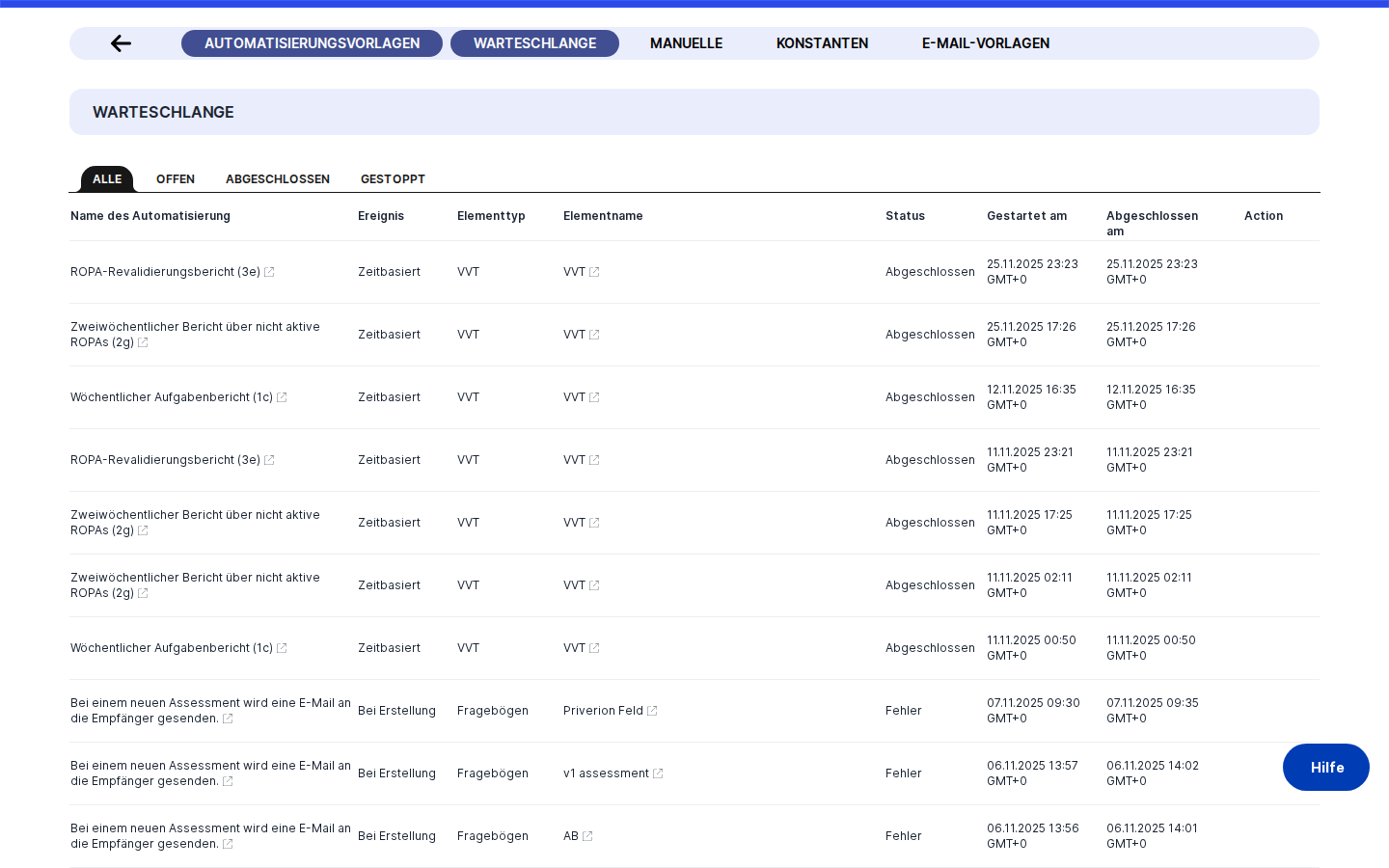
The Queue page is built around a single data table that takes up most of the screen. On the left side of the page, a small column of black pill buttons lets you jump to other workflow sections. The main table area has a clean, borderless look — there is no dividing line between the heading and the table body, and there are no tabs to switch between.
The table lists every workflow execution recorded in your system, newest entries first. Each row represents one specific run of a workflow — not the workflow definition itself, but a single instance of it being triggered and executed. As you scroll to the bottom of the visible rows, the table automatically loads more older records in batches; there is no "Next page" button to click.
The columns you will see across each row are the element that triggered the run, the type of that element, the workflow (or workflows) involved, the current execution status, and an action button that appears only when a run is still in progress.
Working with this screen
Confirming that a new workflow ran successfully
You have just activated a new workflow — perhaps one that automatically sets ROPA entries to "Under Review" when a review deadline is approaching — and you want to confirm it actually fired.
Open the Queue. The most recent entries appear at the top. Scan the Element name column for the names of the records you expected the workflow to touch. If the Status column shows "completed" for those rows, the workflow ran through to its natural end without interruption.
To verify the workflow actually did what it was supposed to do, click the element's name link. A small external-link icon appears next to each name. Clicking it takes you directly to that ROPA entry, vendor record, DSR, or whichever DPMS object is referenced, so you can confirm the status or data was updated as expected. Use your browser's back button to return to the queue and check additional rows.
If you want to understand the workflow logic itself — for example, to check whether a condition node was set up correctly — click the workflow name in the Workflow(s) column. That link opens the Workflow Editor in a new browser tab, leaving your queue view intact.
Stopping an incorrectly triggered workflow mid-run
A workflow has fired when it shouldn't have, or it is applying incorrect changes to a large number of records. You need to stop it before it completes.
Look at the Status column. Rows with a status of "open" are runs currently in progress — and only those rows will show a Stop Workflow button in the rightmost column. The button has a small circle-stop icon and a black background.
Click Stop Workflow on the affected row. The icon immediately changes to a spinning loader to show the stop request is being sent. A moment later, the row refreshes to show an updated status — the run has been halted. Repeat this for any other open rows that belong to the same misconfigured workflow.
Important: There is no confirmation prompt. The moment you click Stop Workflow, the action is sent to the backend and the run is terminated. Any changes the workflow had already applied to records before you clicked Stop are not automatically reversed. Make sure you have identified the correct row before clicking.After stopping the runs, click the workflow name link to open the Workflow Editor in a new tab and correct the configuration — for example, fixing a scheduler node that had the wrong trigger time.
Investigating why a workflow did not complete as expected
A Data Subject Request workflow was supposed to send a completion email, but the data subject reports they never received it. You need to trace what happened.
Open the Queue and look for the row associated with the DSR. Check the Status column — if it shows something other than "completed," that is your first clue. Click the workflow name link to open the Workflow Editor in a new tab and inspect the email notification node: is it pointing to the right email template? Does the condition logic before it actually allow execution to reach that node?
Return to the queue and click the DSR element's name link to open the DSR detail record. From there you can check the audit log to see whether the email send event was recorded at all.
This cross-navigation — queue, editor, element detail — is the standard pattern for root-cause investigation in DPMS workflow troubleshooting.
Reviewing historical workflow activity for audit purposes
You are preparing for an external audit and need to demonstrate that automated workflows for a specific compliance process — say, data breach notification — have been running consistently over the past quarter.
Open the Queue and scroll through the list. As you reach the bottom of the currently loaded rows, the system automatically fetches older entries (there is no separate "load more" button — just keep scrolling). Look at the Workflow(s) column to identify rows belonging to the relevant workflow definition. Note the entries' statuses and timestamps to build a picture of consistent execution.
If you need to inspect a specific incident or ROPA entry that was processed during this period, click its name link to open the detail record directly.
Field reference
Element name — The name of the DPMS object that triggered or was processed by this workflow run. Displayed as a clickable link. Clicking it navigates you to that object's detail page within DPMS. If the element has been deleted since the workflow ran, the link will lead to a "not found" page.
Element type — The category of DPMS object: for example, ROPA, vendor, asset, DSR, or incident. Displayed as plain text. This field drives where the element name link points.
Workflow(s) — The name of the workflow definition that produced this run. Displayed as a link with an external-link icon; clicking it opens the Workflow Editor for that workflow in a new browser tab. If more than one workflow was triggered by the same event, multiple workflow name links are stacked in this cell. If a workflow was saved without a meaningful name, this cell may display a raw identifier string instead of a readable name.
Status — The current state of this specific workflow run. Common values are "open" (currently executing), "completed," and "stopped." This is a read-only field. A status of "open" is what makes the Stop button appear in the action column.
Stop Workflow (action column) — Appears only when the row's status is "open." Clicking this button immediately sends a stop command to the backend. The button shows a spinning icon while the request is in flight and then disappears once the run's status updates. For all other statuses, this column is empty.
How this connects to the rest of DPMS
The queue sits at the intersection of workflow automation and your core compliance data. Every other screen in the workflow module — the Workflow Editor, the Constants list, the Email Templates list — is accessible with a single click from the navigation pills visible at the top left of the queue screen.
From the queue, you can navigate outward in two directions:
- To the element detail (ROPA, vendor, DSR, asset, etc.) via the element name link — useful for verifying that the workflow actually made the changes it was supposed to make.
- To the Workflow Editor via the workflow name link — useful for diagnosing why a run produced an unexpected result or for correcting a misconfiguration after stopping a bad run.
The queue is populated entirely by the backend workflow execution engine. If you expect to see a run but the queue is empty or the run is missing, the most likely explanation is that the workflow was not in "active" status when the trigger event occurred, or the trigger condition was not met. The place to check this is the Workflow Editor, not the queue.
Keep in mind that the queue shows conditions at the time of execution. If you later change a workflow constant or update an email template, those changes do not retroactively alter the queue entries from before the change.
Tips & common pitfalls
Heads up: The Stop Workflow button is only shown for runs with an "open" status. If you cannot find the button on a row you expected to stop, that run has already finished — either naturally or because another user stopped it. Refresh the page to see the latest statuses.Heads up: Stopping a workflow is immediate and irreversible. There is no "undo." Any changes the workflow had already applied to records before you clicked Stop remain in place. Double-check you have the right row before clicking.
- Workflow names fall back to a raw identifier if the name is missing. Always give your workflows a clear, meaningful name in the Workflow Editor before activating them. A workflow called "Blank Workflow" or showing a UUID string is almost impossible to identify at a glance in the queue.
- The queue only shows runs from active workflows. If a run you expected is not appearing, go to the Workflow Editor and verify that the workflow's status is "active" and that the trigger conditions were met at the right time.
- Infinite scroll loads records silently. If you are searching for an older entry and cannot find it, keep scrolling downward. The system loads more records automatically in batches as you reach the bottom of the list. There is no indicator of how many total records exist.
- Element links depend on the element still existing. If a ROPA entry or vendor record was deleted after the workflow ran, the element name link in the queue will lead to a "not found" page. This is expected behavior — the queue entry itself is preserved as a historical record even if the underlying object is gone.
- Multiple workflows in one row means a single trigger fired more than one workflow. If you see several links stacked in the Workflow(s) column for one row, it means the same element action triggered multiple workflow definitions simultaneously. Each link opens the editor for a different workflow.