
Browse assessments
The Browse assessments screen is your single starting point for every questionnaire your organization sends out — internal self-assessments, vendor due-diligence questionnaires, Transfer Impact Assessments, ISO 27001 reviews, and anything else built from your assessment templates. Most Data Protection Officers, information security coordinators, internal auditors and compliance officers open this screen first thing in the morning to see what's in flight, what's overdue, and what needs to be set up next. Think of it as the master inbox for all your structured compliance evaluations.
From here you can launch a brand-new assessment, find an existing one in seconds, jump straight into the responses, and run bulk actions on several assessments at once. Everything you create here flows into reports, dashboard counters and risk scoring, so the assessments you keep tidy on this screen directly shape what your colleagues and auditors will see elsewhere in DPMS.
How to open it
Open the Assessments section in the left-hand sidebar and click Assessments. You can also reach this screen by clicking the "Assessments" widget on the dashboard, or by following the breadcrumb back-link from inside any individual assessment. The screen lives at /assessments.
You need read permission for assessments to see this screen at all — otherwise the menu entry simply won't appear. Creating a new assessment requires the create permission, and the inline edit options on each row require the edit permission. If you're missing those, the buttons will quietly be hidden rather than greyed out.
What you see
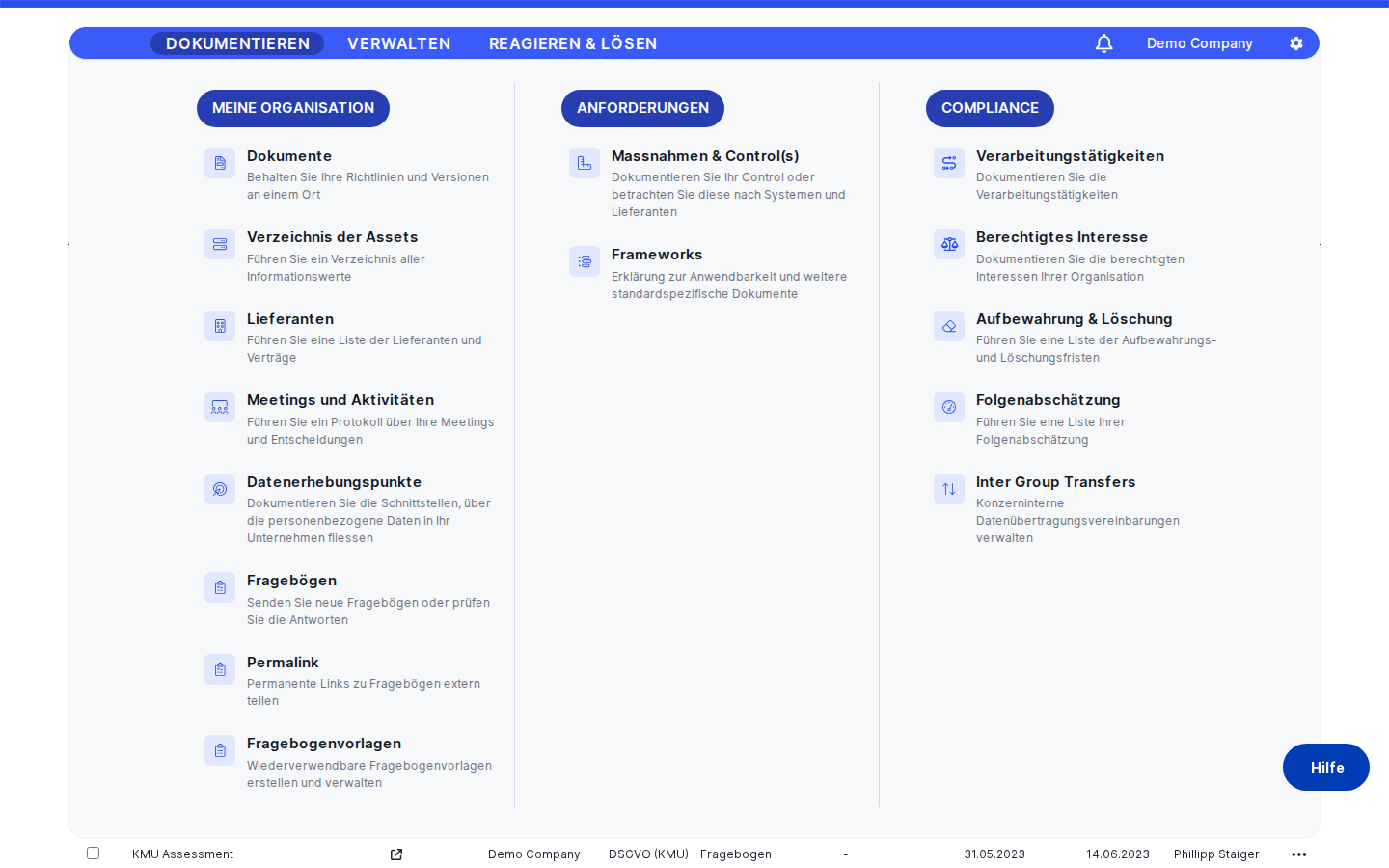
The screen has a familiar three-part layout. At the top you'll find the page header with the Assessments title and, on the right, the blue Create button that launches the new-assessment wizard. Just below the header sits a toolbar with a search bar and a filter builder, followed by a tab strip — All is the default tab, and depending on your configuration you may also see status-based tabs like Open, In Progress or Completed.
The body of the screen is a single, full-width table listing every assessment you have permission to see. Columns from left to right are Name, Results, Template name, Classification, Sent on, Deadline and Sent by. Most column headers can be clicked to sort the list — the only exceptions are Results, which is just a link icon, and Template name, which is non-sortable because an assessment can use several templates at once.
The table uses infinite scroll: as you scroll down, the next batch of assessments loads automatically. Hover over any row to highlight it. Each row has a checkbox on its left edge for bulk operations and a three-dots menu on its right edge for row-level actions. If your company has no assessments at all, the table is replaced by a friendly empty-state illustration with a call-to-action that mirrors the Create button.
Working with this screen
Creating a new assessment from scratch
When a new questionnaire needs to go out — say, the annual security review for your critical vendors — start here. Click the blue Create button in the top-right corner. This opens the new-assessment wizard on its General tab.
On the General tab you'll set the basics: the assessment's name, the templates it will use (templates marked inactive are intentionally hidden from this dropdown), the deadline, the priority, the responsible persons, and any classification tags. You also pick a submission mode: Progressive rolling review lets respondents send in each section as they finish it, while All at once requires the whole questionnaire to be submitted in one go. Choose carefully — switching submission mode later, after responses have started arriving, has knock-on effects for any review workflows already underway.
After saving the General tab, the wizard guides you through the remaining steps in the right order. If any chosen template has maturity scoring (for example, an ISO 27001 self-assessment), you'll go to Maturity goals to set target levels per template and section. Then you move on to Recipients & Notification to add audiences, named users or external email addresses, then Workflows to wire up notification triggers, and finally Reviewer assignment to designate who validates each section's answers. When you finish, the new assessment appears at the top of the /assessments list, ready to be sent or activated.
Finding a specific assessment
Three tools work together: search, filter, and sort. The fastest route is the search bar — start typing part of the name and the table narrows in real time as you go. Search looks at the assessment name and a small set of indexed text fields, and it works together with any filters you have on, not instead of them.
For more structured queries, use the filter builder next to the search bar. Each condition follows the pattern Field — Operator — Value, and you can stack as many as you need. Common combinations include filtering by Classification (for example "Vendor due diligence"), by Status, by a Deadline range ("less than today" to find overdue items), or by who sent the assessment. Filters are remembered as you switch between tabs and persist while you stay on the screen.
Once the list is short enough, click any sortable column header to reorder by that column. To open an assessment, just click anywhere in the row body — that takes you to the assessment's detail page on its General tab.
Jumping straight to the responses
The small external-link icon in the Results column is a shortcut that bypasses the assessment detail page entirely. Click it and DPMS opens the Answers and results screen for that assessment in a new browser tab. That destination is where you see the three counter cards — Answers to be reviewed, Answers to be resubmitted and Reviewed answers — together with toggle switches for Questions and answers, Intermediary results and Final results that filter what you see, and a Go to response button to jump into the actual response review tool.
This is the workflow most coordinators use to chase overdue responses: filter the list, click each Results icon to inspect what's missing, then send reminders from the responses screen.
Running bulk actions on several assessments
When you need to act on more than one assessment at once — for example, to delete a batch of obsolete drafts or export a list for an audit — use the row checkboxes on the left of each row. Selecting two or more rows reveals a quick multiaction strip above the table, summarizing what's selected and offering bulk operations such as delete and export.
Whatever your role can't do (because you lack the relevant permission) is hidden from this strip rather than greyed out. Cancelling clears your selection, and closing the browser doesn't remember it — bulk actions are always a single, deliberate session.
Working with row-level actions
Every row has a three-dots menu at its right edge. Open it to find Edit, Delete, Share (if your role allows sharing), Download, and any AI-related shortcuts your role grants. These are the right tool for quick housekeeping that doesn't need the full detail page — archiving a draft, removing a duplicate, or grabbing a PDF copy.
A few row behaviours are worth knowing about. Edit and Delete are disabled with an explanatory tooltip when an assessment is archived or was imported externally. Externally-imported assessments are also flagged with an EXTERNAL IMPORT badge inside the Answers and results screen, where the standard filter switches are replaced because the import doesn't carry the same per-question metadata.
Field reference
The columns in the table are direct reflections of the values you set when creating an assessment.
- Name — The assessment's human-readable name, shown in your interface language whenever a translation is available. If the name is missing in your language, DPMS falls back to the company default and then to the first available translation. A row showing an em dash here usually means a partially-saved draft.
- Results — A small external-link icon (not text) that opens the Answers and results screen in a new tab. The icon is always present; if there are no responses yet, the destination simply shows zero counters.
- Template name — A comma-separated list of every template the assessment is built from. This column is intentionally non-sortable because one assessment can reference several templates. If you want to group by template, use the filter panel instead.
- Classification — The classification tags assigned at creation time (for example, Annual review or Vendor due diligence). Tags are managed under Compliance settings → Tags.
- Sent on — The date the assessment was first sent to a recipient. If the assessment has been created but not yet activated, this column shows an em dash.
- Deadline — The deadline you set when creating the assessment. Deadline is mandatory, so an empty value here only appears for legacy data.
- Sent by — The display name of the user who created the assessment. Shows an em dash only if that user's record has been deleted.
How this connects to the rest of DPMS
The Browse assessments screen sits at the centre of a large web of compliance workflows. Other screens link in to it from many places: the dashboard's "Assessments" widget, the breadcrumb on any individual assessment's detail or sub-pages, and the Assessments section of vendor, project and other entity profiles. Whenever you finish working inside a single assessment and click the breadcrumb to go back, this is where you land.
The links going out are just as important. Clicking a row opens the assessment detail screen, which fans out into Recipients & Notification, Workflows, Reviewer assignment, Manage access, Maturity goals and the Answers and results screen. The reporting subsystem and the dashboard counters ("assessments in flight", "completed this month", "overdue") all read from the same list you see here, and risk scoring features that consume questionnaire results depend on these assessments being in active and submitted states.
What this means in practice: once you've finished setting up a new assessment from this screen, your next steps usually depend on what the recipients do, not on you. You'll come back here to monitor progress, chase overdue items, and eventually open the assessment again to read its answers and finalize the review.
Tips & common pitfalls
Tip: The fastest way to find an assessment is to type a few letters into the search bar. Search and filters work together, so you can combine "type 'vendor'" with a filter like Deadline is less than today to laser-in on overdue vendor questionnaires.
Heads up: The submission mode you choose when creating an assessment — Progressive rolling review or All at once — is set once and matters all the way through. Switching modes after responses have started arriving has consequences for any review workflows already in motion. Pick deliberately.
- Inactive templates won't appear in the create wizard. If a template you remember is missing from the dropdown, check whether someone has marked it inactive under Assessment templates. This is by design — it stops people from accidentally rolling out an obsolete questionnaire.
- The Template name column doesn't sort. Because one assessment can carry several templates, sorting by template name is intentionally disabled. Use the filter panel with Template = X if you want to group assessments by template.
- Saved drafts can clutter the list. A draft created and abandoned will still show up. If you see rows with confusing values (for example, an em dash where a deadline should be), use the row's three-dots menu to delete them.
- The Results icon opens a new browser tab. If a colleague reports that "the link doesn't work", the most common cause is a browser pop-up blocker — not a DPMS issue.
- Externally-imported assessments behave slightly differently. They show an EXTERNAL IMPORT badge in places where editing or filter switches normally appear, and Edit/Delete in their three-dots menu are disabled. This protects the imported data from accidental modification.
- The Active toggle only shows up on existing assessments. New assessments are created in their active state automatically, so the on/off toggle isn't part of the creation wizard. You'll find it once you reopen the assessment to edit it.