
Browse Records of Processing Activities
The Records of Processing Activities screen is your complete inventory of every processing activity your company performs with personal data — the GDPR Article 30 register, all in one searchable list. As a Data Protection Officer, privacy team member, compliance officer or department lead, this is where you start almost every workflow: see everything at a glance, sort by risk, find the one ROPA you need, and click through to its details. Auditors love it because it answers the obvious first question — "show me what you process."
This screen does not create or edit a single record on its own. Its job is to give you the bird's-eye view, with strong filters, search, and quick navigation into any individual ROPA so you can investigate, update or share it.
How to open it
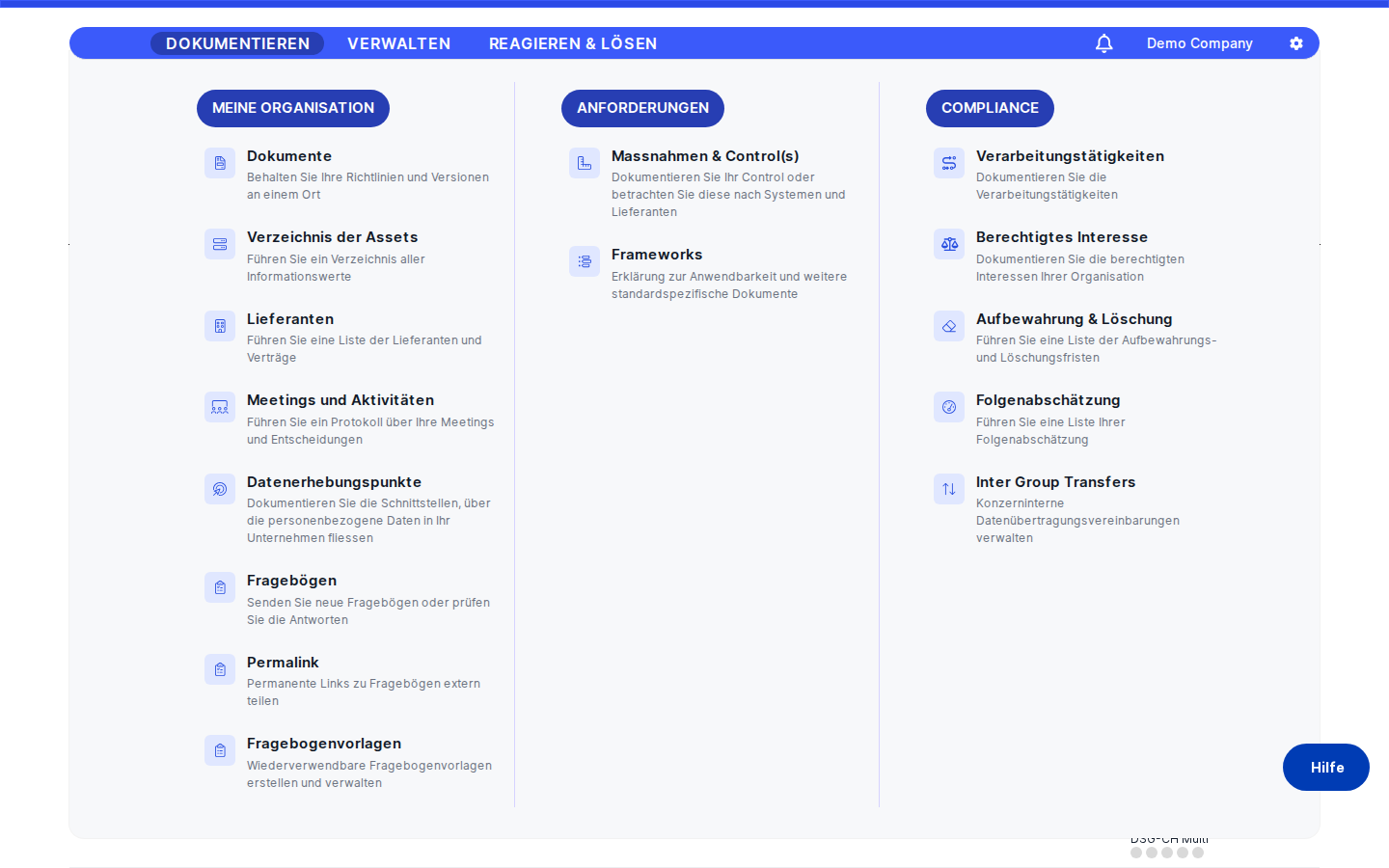
In the main left sidebar click Records of Processing Activities (often shortened to "ROPA"). It's a top-level entry, and clicking it lands you directly on the overview list at /ropa.
This screen is available to anyone with read access to the ROPA module. If you can't see the sidebar entry at all, ask an administrator to check your permissions. What you can do on the screen depends on a few extra rights: the Create button only appears for users allowed to create ROPAs, the Import option requires the import permission, and sharing-related row actions need the publishing/sharing permission.
What you see
When the page loads you land on a wide content area with a clear page header — Records of Processing Activities — at the top left. To the right of the title sits the action zone with a primary Create button and, next to it, a small overflow menu (the "…" icon) that holds secondary actions like Import and Export.
Below the header is one large card containing the ROPA table itself. A tab bar runs across the top of that card; in the standard configuration only the All tab is enabled. Just under the tabs sits a control row with a free-text search box, a filter builder for stacking conditions, a sort control, a Standard selector that drives the risk column, and a toggle that shows or hides the Data transfer column. The body of the card is the ROPA list — one row per processing activity, with quick action icons at the right edge of every row and infinite scrolling at the bottom for browsing long lists.
Working with this screen
Doing your morning ROPA round
This is the most common use of the screen for a DPO. Open the sidebar and click Records of Processing Activities. Make sure the All tab is selected so you see every ROPA you have access to. Click the sort control and choose to sort by Risk descending, so the most critical processings float to the top.
Now go down the list. Click any row to open that ROPA's detail page, where you can review responsibles, last review date, linked DPIA, personal data categories, external recipients, retention rules and more. Use your browser's back button (or the in-app back navigation) to return to this list and pick the next one. If you spot a ROPA whose review is overdue, you don't have to leave the page — use the envelope icon at the right edge of the row to send a reminder to the responsible person.
If your screen is busy, narrow the list down using the filter builder above the table. For example, add a filter Organizational Unit equals Marketing, then Classification contains HR, and the list shrinks to just those rows. Each filter shows up as a chip you can remove individually when you want to broaden the view again.
Registering a new processing activity
Whenever a department launches something new that touches personal data — a new HR survey tool, a new marketing platform, a new customer support workflow — it needs to land in your ROPA register.
- From the overview, click the
Createbutton at the top right. This takes you straight into the ROPA creation flow. - Fill in the basic identifying information: a clear name, the organizational unit that owns it, a short description, the company's role (controller, processor or joint controller), the applicable regulations and any classification tags that help you find it later.
- Save the form. The new record now appears as a row in this overview, and you can click into it to keep building out the details — personal data categories, purposes, affected persons, legal basis, linked assets and external recipients, DPIA, risk scenarios, TOMs, tasks, retention rules and so on.
If the Create button is missing for you, your account doesn't currently have permission to create ROPAs — ask an administrator.
Producing a list for an auditor
When an auditor asks for "all our active GDPR processings," you can build that view right here.
- In the filter builder, add a rule for the applicable regulation (for example, GDPR) and another for the status you want (typically "active").
- Optionally adjust the sort, for example by name, so the list looks tidy.
- Open the overflow menu (the "…" next to
Create) and chooseExport. DPMS produces a downloadable file that mirrors exactly what's currently visible in the table — same columns, same filters, same order.
You can hand that file directly to the auditor or attach it to your audit evidence folder.
Spotting cross-border data transfers
Cross-border transfers are one of the most sensitive areas of privacy compliance, and this screen has a dedicated shortcut for them.
- Find the
Data transfertoggle in the control row above the table and switch it on. - A new
Data transfercolumn appears. For each ROPA, DPMS looks at every linked external recipient and lists the countries that are different from your company's own country. Vendors with no country recorded are silently skipped, and historical data inconsistencies are filtered out automatically. - Use the new column to scan or sort for ROPAs with foreign recipients. Click any of those rows to open the ROPA and review its
External Recipientstab in detail — that's where you'll find the legal basis for transfer, the safeguards in place and the contractual setup.
When you're done, you can switch the toggle off again to keep the table compact for everyday use.
Switching the risk standard you view
The Risk column shows a colour-coded chip and a numeric score for each ROPA, but those numbers depend on which risk standard you're looking through. Use the Standard selector above the table to change perspective:
- Picking a specific standard (for example, GDPR or ISO 27001) shows the risk evaluated against that standard. If a ROPA hasn't been scored against that particular standard, the cell is empty.
- Picking the
Allentry combines all linked standards into one view.
Your selection only affects how the column is rendered; it does not change the underlying risk evaluations. If you need to actually run or update a risk evaluation, click the row to open the ROPA and use its risk view there.
Bulk-importing ROPAs after a migration
If you're rolling out DPMS to a new entity or migrating from another tool, you don't have to recreate every ROPA by hand.
- Open the overflow menu next to
Createand pickImport. - Select the file (typically a JSON export in the standard DPMS format).
- After the upload finishes, the imported ROPAs appear in the
Alltab.
Import is additive — it never deletes or merges existing records, so you can re-run it safely without losing data. If the option is greyed out, your account doesn't have the import permission.
Field reference
Every row in the table represents one ROPA. The columns shown are:
- Name — the multilingual name of the processing. Translated automatically into your working language when a translation exists. Click the name (or the row) to open the ROPA's detail page. Sortable.
- ROPA type — the legal role your company plays for this processing: controller, joint controller or processor. Empty when the role hasn't been set yet. Sortable.
- Classification — the tags assigned to the ROPA in its General tab (e.g. HR, Marketing, Customer Care). Multiple tags are joined together in one cell. Best used to group processings by topic.
- Organizational unit — the unit responsible for the ROPA. If your company has departments enabled in compliance settings, this column also shows the department in brackets, like
Unit [Department]. If the department suffix never appears, departments are simply not turned on for your tenant. - Risk — a colour-coded priority chip (Very Low through Very High) plus the numeric score, calculated against the standard you've chosen in the
Standardselector. Clicking the cell takes you to the risk view of that ROPA. Empty when the ROPA hasn't been evaluated against the selected standard. - Data transfer — only visible when the toggle is on. Shows the foreign countries of the ROPA's external recipients. Recipients without a country are skipped.
A note on the small icon bar at the right edge of every row (ban, envelope, memo with check, printer): in the current build these are visual placeholders for per-row quick actions like "mark as not applicable," "send reminder," "mark as approved" and "print." The full functionality lives inside the ROPA detail page — for serious actions, click the row to open the record.
How this connects to the rest of DPMS
The ROPA list is the spine of the privacy module. Almost every other compliance area ties back to one or more ROPAs:
- DPIAs are typically scoped around the processing described in a ROPA.
- Vendors appear here as external recipients, and from a ROPA's
External Recipientstab you can navigate into the vendor's detail screen. - Assets (systems, databases, applications) get linked to ROPAs that use them.
- Internal Access lists who in the company can see the personal data covered by the ROPA.
- Tasks, Assessments, Documents, Retention & Deletion records and Incidents all reference ROPAs for context.
- Risk Settings drives the Risk column you see here. Changing the active risk model in IT/Compliance settings changes the values shown in this column.
- Sharing: a ROPA originating from a parent company can appear here as a shared element. Many actions on shared ROPAs are read-only because the source of truth lives in the parent company.
After you create or update a ROPA from this screen, your typical next steps are: open it, fill in the personal data categories, link the relevant assets and external recipients, attach the appropriate TOMs, run a risk evaluation, and trigger any DPIAs or assessments that come out of it. This list is where you'll come back to check your progress, search for what's missing and demonstrate compliance.
Tips & common pitfalls
Tip: When the list looks shorter than you expected, check the filter chips above the table first. Filters persist while you're on the screen, so a leftover rule from earlier may be hiding rows.
Heads up: TheRiskcolumn depends on theStandardselector. If a ROPA is blank in that column, it doesn't mean it has no risk — it means the ROPA hasn't been scored against the standard you're currently viewing. Switch the standard, or open the ROPA and run an evaluation.
- Foreign recipients you know exist aren't showing up? Make sure the
Data transfertoggle is on, and remember that only recipients with a country attribute different from your own company's country count. Vendors without a country recorded are skipped — fixing the country on the vendor record makes them appear here. - The department in brackets never appears next to the org unit. Departments are an optional second level. If they're not enabled in your compliance settings, the suffix simply won't show up anywhere.
- The classification cell looks cramped with many tags. That column is intentionally narrow. Open the ROPA's detail page if you need to read the full list of tags.
- A new ROPA you just created isn't visible. The list refreshes after a successful save, but on a slow connection you may need to wait a moment, scroll, or briefly switch tabs. A hard reload is the last resort.
Importadds, never replaces. Running an import twice creates duplicates rather than merging. Clean up the file before importing if you're worried about overlap.- For one-click row actions, open the ROPA. The icons on the right edge of each row are placeholders in the current build. The real workflow actions (approving, sending reminders, blocking, printing) live inside the individual ROPA detail page.