
Auto-translation settings
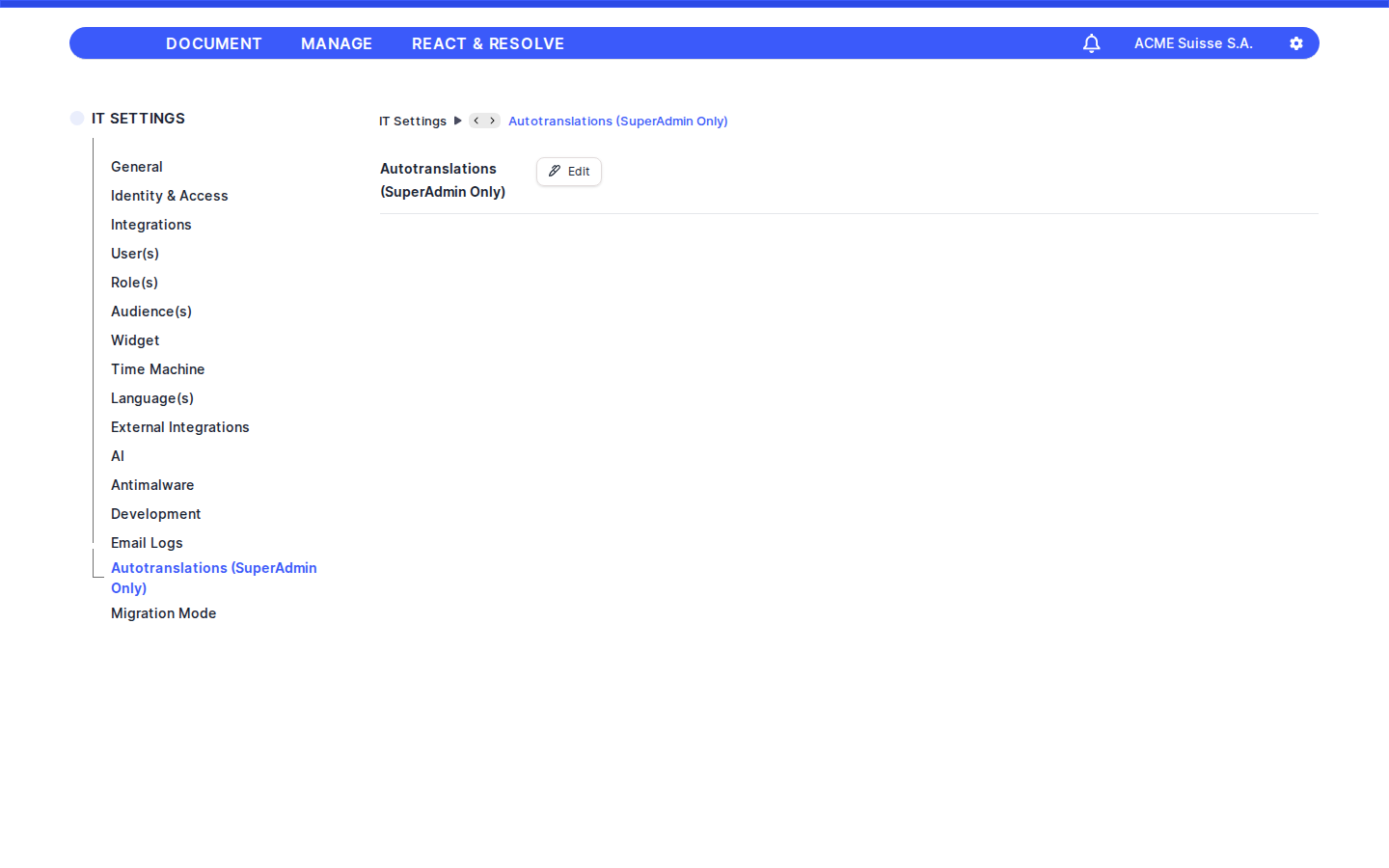
The Auto-translation settings screen is where Superadmins start an auto-translation job that fills in missing translations for multi-language fields across the platform. You'll typically open this page when new content has been added in one language and you want the system to populate the equivalents in your other active languages.
Getting there
In the main navigation go to IT Settings → Autotranslations Job (path: /it/settings/autotranslations).
Tip: This screen is restricted to the Superadmin role. Any other user opening the URL will see the standard Forbidden (HTTP 403) page instead of the panel below.Header / toolbar
The page renders as a single read-only summary card titled with the same label shown in the side menu (Autotranslations Job). The card exposes one action:
Edit— Opens the editable Autotranslations Job page where the actual element-type table and the per-row / bulk auto-translation controls live. This is the only entry point from this index screen into the working view.
There is no search box, no filter, and no other toolbar button on the index page itself. Comments / notes for the panel are intentionally hidden.
The Autotranslations Job edit view
Clicking Edit takes you to the working page. It displays one row per element type that supports multi-language fields (for example ROPA, Vendors, Assets, TOMs, Documents, etc.). The interactive controls described below are the ones available to you on that page.
Status column
Each row shows a status indicator that tells you where the auto-translation job stands for that element type. Recognized values are:
Open— gray circle. The element type is registered but no auto-translation has run yet.In progress— blue spinning indicator. An auto-translation job is currently running for this element type.Send— blue language icon. A translation request has been dispatched.No missing— green check-circle. There are no missing translations for this element type; nothing to do.
If a row carries any other (or no) status value, the cell is rendered empty. Use the status column to decide which element types still need attention before triggering a job.
Per-row Autotranslate button
Every row exposes an Autotranslate button (blue, white text). Clicking it triggers an auto-translation job for that single element type. Behavior:
- The button is disabled and faded (50% opacity, not-allowed cursor) while the request is in flight, so you cannot double-trigger a run for the same row.
- The button is also disabled when the row is flagged as blocked (for example when a job for it is already running or another condition prevents launching). In that case clicking has no effect.
- On a successful click, the system sends a request to start filling in missing translations only for that row's element type.
Use this when you only want to re-translate a specific area (for example only Vendors) without affecting the rest of the platform.
Bulk action: Autotranslate all / Autotranslate selected
The action bar above the table contains a single bulk button whose label changes depending on the selection:
- When no rows are selected, the button is labeled
Autotranslate all. Clicking it runs the auto-translation job for every element type listed. - When one or more rows are selected, the button switches to
Autotranslate selected (N), whereNis the number of selected rows. Clicking it runs the job only for the chosen element types.
While the bulk job is running, the button is disabled and faded (50% opacity, not-allowed cursor) to prevent re-triggering. When idle, it shows the standard hover fade.
Tip: UseAutotranslate allafter a large content import or after activating a new language. Use the per-row button orAutotranslate selectedfor targeted, faster runs.
Loading, empty and error states
- No permission: non-Superadmin users opening the page see the
Forbidden(HTTP 403) screen rather than this panel. - Per-row loading: while a single-row job is being launched, that row's
Autotranslatebutton is disabled and faded. - Bulk loading: while the
Autotranslate all/Autotranslate selectedrequest is in flight, the bulk button is disabled and faded. - Unknown status: rows with a status that does not match
open,in_progress,sendorno_missingshow an empty status cell — the row is still actionable, the indicator is simply not displayed. - The index page itself has no dedicated empty-state copy; if you reach it without permission you'll see the 403 page instead.
Permissions
- Open this screen: requires the Superadmin role. Access is gated strictly by role, not by a granular permission constant.
- Click
Edit: same Superadmin requirement — it leads to the Autotranslations Job edit route. - Trigger per-row
Autotranslateand trigger bulkAutotranslate all/Autotranslate selected: Superadmin only. Both actions call the same protected backend trigger endpoint.
Tip: Because every action on this screen is destructive in the sense that it queues background work that touches translatable fields across the company, it is intentionally limited to Superadmin. If a colleague needs to run auto-translation, either grant them the role temporarily or run the job on their behalf.