
Terms for legitimate processing
The Legal Basis screen is where your organisation defines, names, and manages every legal ground it relies on to process personal data — "Consent", "Legitimate Interests", "Legal Obligation", and so on. Under GDPR, the Swiss nDSG, and similar frameworks, documenting a valid legal basis for each processing activity is not optional; it is a core regulatory requirement. Think of this screen as your organisation's official glossary of processing justifications. You configure these terms once here, and they then appear as selectable options throughout DPMS — most critically inside the ROPA module, where every processing record must cite at least one legal basis before it can be considered complete for an auditor.
DPOs and privacy managers will visit this screen regularly: to review the existing catalogue, add new terms when a new type of processing is identified, update descriptions when regulations change, and retire terms that are no longer applicable. Auditors and IT administrators may access it in read-only mode to verify that each processing ground is correctly linked to the relevant legal instrument.
How to open it
In the left-hand sidebar, expand Compliance and click Legal Basis. The screen is available to any user with read access to the Legal Basis module. Users without that permission will not see the menu item, and navigating directly to the URL will result in an access-denied page. Creating or editing terms requires the corresponding write permissions, which your system administrator assigns through the standard role management area.
The index opens to a table listing every term your organisation has configured, with its Name and the Regulations it covers (for example, "GDPR, nDSG"). If a term has been saved without a regulation assignment, the column shows "No Regulation" — this is allowed but worth reviewing.
What you see
The screen has two main areas: the index list and the detail view for a single term.
On the index, a search and filter toolbar sits at the top of the content area. Below it, a table lists all configured legal basis terms. Each row shows the term's name and its applicable regulations. In the top-right corner, a Create button lets you add a new term. On the right edge of each row you will notice four small icons (a ban symbol, an envelope, a tick, and a printer). These are placeholders for future workflow actions and do not perform any function yet — you can safely ignore them.
When you click a row, you open the detail view. On the left a narrow panel shows the available tabs (currently just General). On the right, a sticky header bar shows who is responsible for the record, its current status (Active, Draft, Inactive, Review, or Downstream Processors), and its priority — all of which you can update inline without entering an edit form. Below the header, the General tab shows the term's name, description, and regulations in a read-only card, with an Edit button to make changes. A clock icon in the top-right corner opens the Activity Log drawer, where you can review the full change history for the record.
Working with this screen
Creating a new legal basis term
You will need to create a new term whenever your organisation identifies a type of processing that relies on a ground not yet in the catalogue. For example, suppose your team decides to run product-improvement analytics under Legitimate Interests (GDPR Art. 6(1)(f)), but that ground has never been added to DPMS.
- From the Legal Basis index, click
Createin the top-right corner and select Create Legal Basis from the small dropdown that appears. - The creation form opens on the
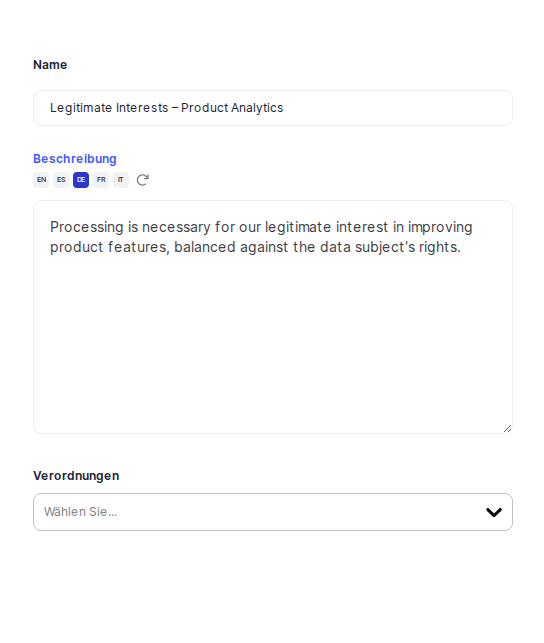
Generaltab. TheNamefield is focused automatically — type a clear, unambiguous label such as "Legitimate Interests – Product Analytics". This is the label your colleagues will see in every ROPA dropdown, so be specific. - In the
Descriptionfield, write a plain-language explanation of when this ground applies and any conditions attached to it (for example, a reference to a Legitimate Interests Assessment you have conducted). This field supports multi-line text. If your organisation has configured DPMS's AI assistant in IT Settings, an auto-translation or auto-generation button may appear alongside this field — useful if you need to document the same term in multiple languages. - In the
Regulationsmulti-select, choose every data-protection law this term falls under — for instance, both GDPR and nDSG if your organisation is subject to both. If the regulation you need is not listed, you can save without selecting one and update it later, but bear in mind that auditors may query unlinked terms. - Click
Save. DPMS creates the record and takes you to its detail view. - In the sticky header, click the
Statusdropdown and change it from Draft to Active. This change is saved immediately — no further save click is required. Only Active terms appear in the ROPA dropdown by default, so this step is essential before your colleagues can use the new ground in their processing records.
Reviewing and updating an existing term
When a regulation is amended or your organisation's internal guidance changes, you may need to update the description or regulation scope of an existing term.
- Open the Legal Basis index and type the term's name into the search bar. The table filters as you type.
- Click the matching row to open the detail view.
- Review the current
Name,Description, andRegulationsin theGeneraltab card. - Click
Editto open the edit form. Update the description or change the regulation selection as needed. - Click
Save. DPMS applies the changes and returns you to the detail view. - To confirm that your change has been recorded, click the clock icon in the top-right corner. The Activity Log drawer opens and shows every field-level change to this record — who made it and when. This is particularly useful if an auditor later asks for evidence of when a term was last reviewed.
Navigating through terms during an audit
During an audit review, you may need to work through every active legal basis term in sequence without going back and forth to the index. DPMS supports this with the previous / next record arrows in the breadcrumb trail.
- On the index, apply a filter for Status = Active to narrow the list.
- Click the first row. In the breadcrumb at the top of the detail view you will see small chevron arrows beside the record name.
- Review the record, then click the right-chevron arrow to advance to the next active term. DPMS fetches the adjacent record based on your active filter.
- Continue clicking through the list. When you reach the last term, the right arrow is greyed out and non-clickable.
Tip: The previous/next arrows only work reliably when you arrive at a detail view by clicking a row in the filtered list. If you open a detail view directly from a bookmarked URL, the arrows may be inactive until the navigation helper has resolved the adjacent records.
Deactivating a term that is no longer applicable
If your organisation stops relying on a particular ground — for example, you retire "Consent – Product Line A" after discontinuing that product — you should deactivate the term rather than deleting it. Deactivating preserves the historical link for any ROPA records that already reference it.
- Open the relevant record from the index.
- In the sticky header, click the
Statusdropdown and select Inactive. - The status updates immediately. The term will no longer appear in the active dropdown when colleagues create new ROPA records, but existing records that reference it will continue to display the term name correctly.
How this connects to the ROPA module
The most important downstream connection is to the Records of Processing Activities. When a colleague opens a ROPA processing record and goes to the Legal Basis tab, the dropdown they see is populated directly from the active terms you have configured here.
If your organisation processes special-category data (for example, health or biometric data), ROPA will display an additional field for the Art. 9 ground alongside the standard Art. 6 field. The Art. 9 options are also sourced from legal basis terms configured in this catalogue, so make sure the appropriate special-category grounds are set up before your colleagues begin filling in ROPA records that involve sensitive data.
Legal Basis terms are also accessible through Settings → Compliance Settings → Attributes / Tags, where they appear alongside other configurable tag types. This area allows a system administrator to perform bulk operations such as importing terms via a JSON file, which can be useful when setting up a new DPMS tenant or migrating from another system.
Once your legal basis catalogue is complete and all terms are marked Active, your colleagues can begin — or continue — populating ROPA records with confidence that every available processing ground is correctly documented and linked to the relevant regulation.
Field reference
- Name — The short, human-readable label that will appear in every ROPA dropdown. Required. Be specific enough that colleagues can distinguish between similar grounds (e.g. "Legitimate Interests – Marketing" vs "Legitimate Interests – Security"). No maximum length is enforced in the form, but shorter labels display better in dropdowns.
- Description — A plain-language explanation of when and how this ground applies. Not required, but strongly recommended for audit purposes. Supports multi-line text. May offer an AI assist button if the DPMS AI feature is configured.
- Regulations — One or more data-protection frameworks this term falls under (e.g. GDPR, nDSG). Not required — a term can be saved with no regulation — but unlinked terms may be queried by auditors. Multiple regulations can be selected simultaneously.
Tips & common pitfalls
Heads up: If the Legal Basis catalogue is empty or all terms are set to Inactive, the legal basis dropdown in every ROPA record will be blank. Colleagues will be unable to complete their processing records. Always activate a term before announcing it as available.
Tip: Use the Description field to record the date and outcome of any Legitimate Interests Assessment (LIA) or other internal review. This turns each term into a living audit document, not just a label.- "No Regulation" is valid but unusual. Saving a term without selecting a regulation is allowed — useful when you are setting up a term before the regulation has been formally added to your DPMS tenant. Update it as soon as possible to avoid audit queries.
- The "Downstream Processors" status is unique to this module. Unlike other DPMS elements, Legal Basis records have a fifth lifecycle status — Downstream Processors — indicating that the processing ground originates from a sub-processor or vendor arrangement. This status is only available in the detail view's sticky header, not on the create form.
- The four row icons on the index (ban, envelope, tick, print) do nothing yet. They are placeholders for future features. Do not include them in any current workflow.
- Where you came from affects where Save takes you. If you opened the create or edit form from inside an Assessment review portal or a ROPA data-mapping workflow, clicking
Savewill return you to that workflow — not to the Legal Basis index. This is intentional. If you end up somewhere unexpected after saving, use your browser's back button or the breadcrumb trail to return to the index. - The Activity Log is your audit friend. Before any compliance review or external audit, click the clock icon on each key term to verify that changes are properly recorded. The log shows field-level detail — exactly what changed, who changed it, and when.