
Record of Processing Activities (ROPA)
The ROPA module is where your organisation's entire processing landscape comes together. Every processing activity you carry out — from payroll to marketing analytics — needs a record here to satisfy the Article 30 GDPR obligation. But in DPMS, a ROPA record is far more than a row in a spreadsheet: it becomes the anchor that connects legal bases, personal data categories, risk scenarios, DPIA assessments, technical and organisational measures (TOMs), vendors, and much more. Because of these connections, the ROPA screens are the most visited pages in the system — and the first place an auditor or supervisory authority liaison will look.
How to open it
In the left-hand navigation sidebar, click Records of Processing Activities. No sub-menu expansion is needed — it is a top-level item. This takes you directly to the ROPA index at /ropa.
You need at least the ROPA read permission to see the menu item at all. Users with read-only access can view all tabs and data but cannot edit records. Users without any ROPA permission will not see the menu item, and navigating directly to the URL shows an access-denied screen.
What you see
The index (list) view
The list view shows all ROPA records your account can access in a sortable table. Above the table is a tab strip — currently showing an All tab — followed by a search bar and filter controls on the left. A Create button sits on the right side of the page header.
The table columns are: Name (a clickable link to the record), Type (the organisation's legal role — Controller, Processor, etc.), Classification (category tags), Organisational Unit, and Risk Target (a colour-coded risk badge). If your IT administrator has enabled the Data Transfer feature, an additional Data Transfer column shows external recipients located outside your home country.
The detail view
Clicking any row opens the detail screen. This screen is divided into three zones. On the far left is a collapsible Element Menu — a vertical navigation tree listing every section of the record (General, Personal Data, Legal Basis, Assets, DPIA, Risk Scenarios, and many more). In the wide central area, the breadcrumb bar runs across the top with the record name and active tab name. Just below it sits the header actions strip with the status selector, responsible person, priority, last review date, and the Edit and AI auto-generate buttons. In the top-right corner, a small clock icon opens the full audit trail for the record.
Working with this screen
Creating a new ROPA record from scratch
When a new processing activity starts in your organisation — a new HR system, a new customer analytics tool — you need to register it before it goes live.
From the ROPA index, click the Create button and choose Create ROPA from the dropdown. You are taken to the creation form.
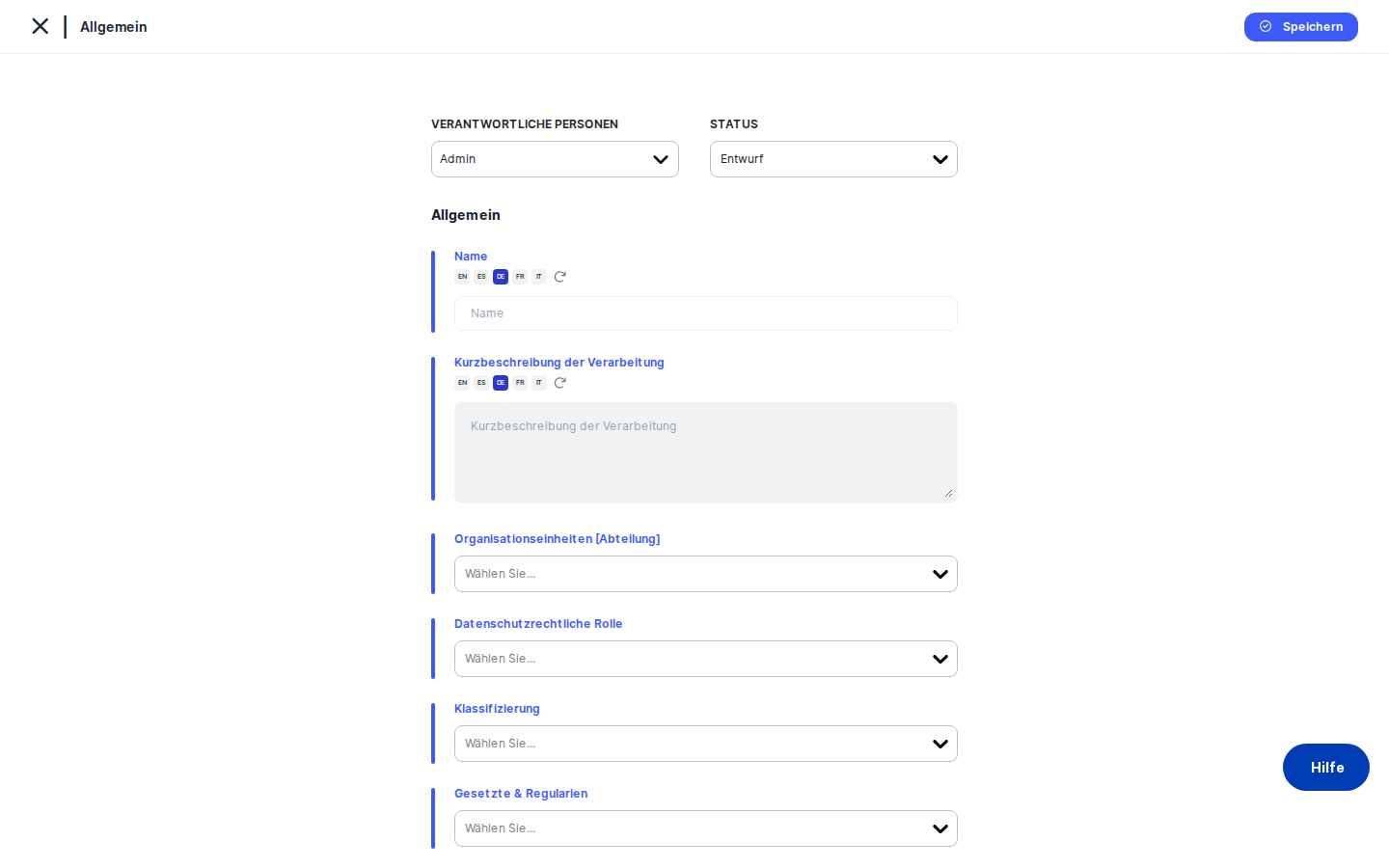
Start by typing the activity's name in the Name field — this is the only required field, but the more you fill in now, the faster the record will be complete. Assign yourself or a colleague as Responsible Person. Leave the Status as Draft for now; you can promote it to Active once all sections are filled.
Next, choose the Organisational Unit (the department that owns this processing) and set the Legal Role: select Controller if your organisation determines the purposes and means of the processing, Processor if you are acting on behalf of another organisation, or Joint Controller for shared arrangements. If you choose Processor, a Vendor / Controller field appears — enter the name of the organisation you are processing for.
Critically, select the Applicable Regulations (e.g. GDPR, CCPA). This choice acts as a filter across the entire record: the legal bases, special categories, and purpose-of-processing options available on the linked-element tabs will be limited to those that belong to the regulations you select here. Getting this right at the start saves rework later.
Click Save. DPMS creates the record and takes you straight to the detail screen.
Completing a record by linking elements
Once the core fields are saved, work through the Element Menu on the left, tab by tab. Each tab lets you link the record to other objects already in DPMS.
On the Personal Data tab, link the categories of personal data involved (e.g. "Salary data", "Bank account details"). On the Legal Basis tab, link the legal basis that justifies the processing (e.g. "Legal obligation – Art. 6(1)(c) GDPR"). On the Affected Persons tab, specify who is affected (e.g. employees, customers). On the External Recipients tab, link any vendors or processors who receive the data.
Every tab follows the same pattern: a Link button lets you search for and attach existing DPMS objects; a Create button lets you create a new one on the fly. Some tabs — Personal Data and Purpose of Processing — also offer a Collections toggle in the top-right of the table header. Switching to Collections lets you link a pre-built bundle of related data types in one step, rather than linking each item individually.
Tip: Work through the tabs in order — General, then Personal Data, Legal Basis, Affected Persons, TOMs, and finally Risk Scenarios. Later tabs often depend on choices made in earlier ones.
When the record is fully populated, return to the header actions strip at the top of the detail view and change the Status from Draft to Active using the status dropdown. This change saves immediately — no Edit button needed.
Using AI to speed up completion
If your organisation has an AI provider configured in IT Settings, the AI auto-generate button (the wand icon) appears in the header actions strip. This is most useful for a newly created record that has a name but little else.
Click the wand icon. DPMS queries the AI service, which drafts a Brief Description of Processing, suggests applicable regulations, proposes personal data categories, affected persons, purpose-of-processing tags, linked assets, and risk scenarios — all based on the record's name and any elements already linked.
While the AI job runs, the record is temporarily locked: the status selector, the Edit button, and all field inputs are greyed out. Once the job completes, review the suggestions on each tab and accept, adjust, or remove them as appropriate. Nothing the AI generates is saved automatically without your review.
Heads up: The AI button only appears when your IT administrator has set up an AI provider. If you do not see the button at all, contact your IT admin to check the AI configuration in IT Settings.
Reviewing records before an audit or supervisory authority inspection
Before a regulatory inspection, a DPO typically needs to verify that all active ROPA records are complete and up to date. Here is an efficient way to do this in DPMS.
On the ROPA index, use the filter controls to narrow the list — for example, filter by Status = Review or by a specific Organisational Unit. Apply the filter, then click the first record in the resulting list.
Once inside a record, check the General tab for a complete name, a meaningful brief description, and the correct applicable regulations. Then use the Previous/Next record arrows in the breadcrumb to step to the next record without going back to the list. The arrows only cycle through records that matched your filter, so you stay focused on the relevant subset.
For any record that looks complete, change the Status to Active directly from the header strip. For records that need corrections, click Edit to open the edit form for the current tab, make your changes, and save.
To check who made recent changes to a record — useful when a colleague updated something and you need to understand why — click the clock icon in the top-right of the content area. This opens the Activity Log drawer, which shows a full field-by-field audit trail: every change, who made it, and when.
Initiating and tracking a review workflow
When a ROPA record is due for its periodic review — or when you need a formal sign-off before a supervisory authority submission — navigate to the Review and Approvals tab in the Element Menu.
Notice that the header actions strip (status, responsible person, edit button) disappears on this tab. The tab has its own dedicated layout for managing review workflows: you can initiate a new review, assign reviewers, and track progress. Once a review is completed, the Last Review date in the header strip updates automatically across all other tabs, giving you audit evidence that periodic reviews are being conducted.
Field reference
The following fields on the creation form and General tab are worth explaining in more detail:
- Name — The official name of the processing activity. Required. Used as the identifier throughout DPMS wherever this ROPA is linked.
- Brief Description of Processing — A plain-language explanation of what the processing involves. Not required to save, but important for audit readiness and AI generation. Supports multiple languages.
- Organisational Unit — The department or business unit responsible. Filters and access controls elsewhere in DPMS can be scoped to this value.
- Legal Role / ROPA Type — Whether your organisation is acting as Controller, Processor, Joint Controller, etc. Controls which fields and tabs are relevant (e.g. Vendor / Controller only appears for Processor records).
- Vendor / Controller — Only visible when Legal Role includes
Processor. Identifies the organisation on whose behalf you are processing. You can create a new vendor record on the fly by typing a name. - Applicable Regulations — The data protection laws this processing falls under. This is a master filter: changing it after linking legal bases or special categories may trigger a consistency warning. Select all relevant regulations at the start.
- Classification — Optional category tags for internal grouping and filtering.
- Target Risk — An initial risk rating (Very Low to Very High, default: Medium). Used on the Risk tab and in the index table's Risk Target column.
- Need to Process — A brief explanation of why the processing is necessary. Supports multiple languages.
How this connects to the rest of DPMS
The ROPA record sits at the centre of your compliance programme. Almost every other module in DPMS has a relationship with ROPA:
- Assets — Link assets (IT systems, databases) to a ROPA to document which systems enable the processing.
- DPIAs — A DPIA must be linked to a ROPA. If no ROPA exists, you cannot complete a DPIA. The applicable regulations you select on the ROPA filter which regulations apply to the linked DPIA.
- Risk Scenarios — Risk scenarios are tracked through the ROPA's Risk Scenarios tab, and their mitigation measures (TOMs) appear on the TOMs tab.
- Vendors / External Recipients — Linking a vendor as an external recipient creates the accountability trail for data-sharing arrangements.
- Retention & Deletion — Retention schedules are linked per ROPA to document how long personal data is kept.
- Assessments / Data Mapping — The Assessments module uses ROPA data in read-only mode for data mapping reviews.
After creating and completing a ROPA record, the natural next steps are: link a DPIA if the processing is high-risk; configure a retention schedule on the Retention & Deletion tab; and review the TOMs tab to confirm that appropriate technical and organisational safeguards are documented.
Tips & common pitfalls
Heads up: Removing an applicable regulation after you have already linked legal bases or special categories will trigger a consistency warning and block saving. You must either add the regulation back, or manually unlink the affected legal bases and special categories first. This warning only appears when you click Save — there is no pre-emptive alert.
Tip: Use the Previous/Next record arrows in the breadcrumb for bulk review sessions. If you have filtered the list to "Status = Review" and then opened a record, the arrows step only through that filtered subset — far faster than returning to the list between each record.
- The Collections toggle on Personal Data and Purpose of Processing tabs persists per browser, not per user. If a colleague set the view to "Collections" on a shared machine, you will see the same view when you log in. Switch it back manually if you want to see individual linked items.
- The Edit button routes to the tab you are currently viewing. If you are on the Legal Basis tab and click Edit, you land on the Legal Basis edit view, not on General. This is by design — but if you arrive via an external link without the correct tab parameter in the URL, check which tab is active before making edits.
- Child/shared ROPA records (records consulted from a partner organisation's portal) are almost entirely read-only. Only the Responsible Person and Organisational Unit fields remain editable locally. All other fields, including the name, description, and applicable regulations, are locked.
- If the AI auto-generate button disappears from the creation form after you enter a name, it has moved to the detail screen header. The creation form only shows the AI button until the record is saved; after that, use the wand icon in the header actions strip on the detail screen.
- The Activity Log (clock icon) is hidden for shared/consulted records and for users without the required read permission. If you cannot see it, ask your DPO or IT admin whether your account has the necessary access level.