
Browse TOMs
Browse TOMs — Your Central Control Library
The TOMs screen is the starting point for managing all Technical and Organisational Measures in your DPMS. Whether you are a DPO building out your control library from scratch, a compliance officer preparing for an audit, an information security manager reviewing your domain coverage, or a risk manager linking controls to risk scenarios, this is where every TOM-related action begins. Because GDPR Article 32 requires organisations to implement and demonstrate appropriate safeguards, this screen gives you a single, searchable, filterable view of every control your organisation has documented — and a clear path to creating, importing, editing, or exporting them.
How to open it
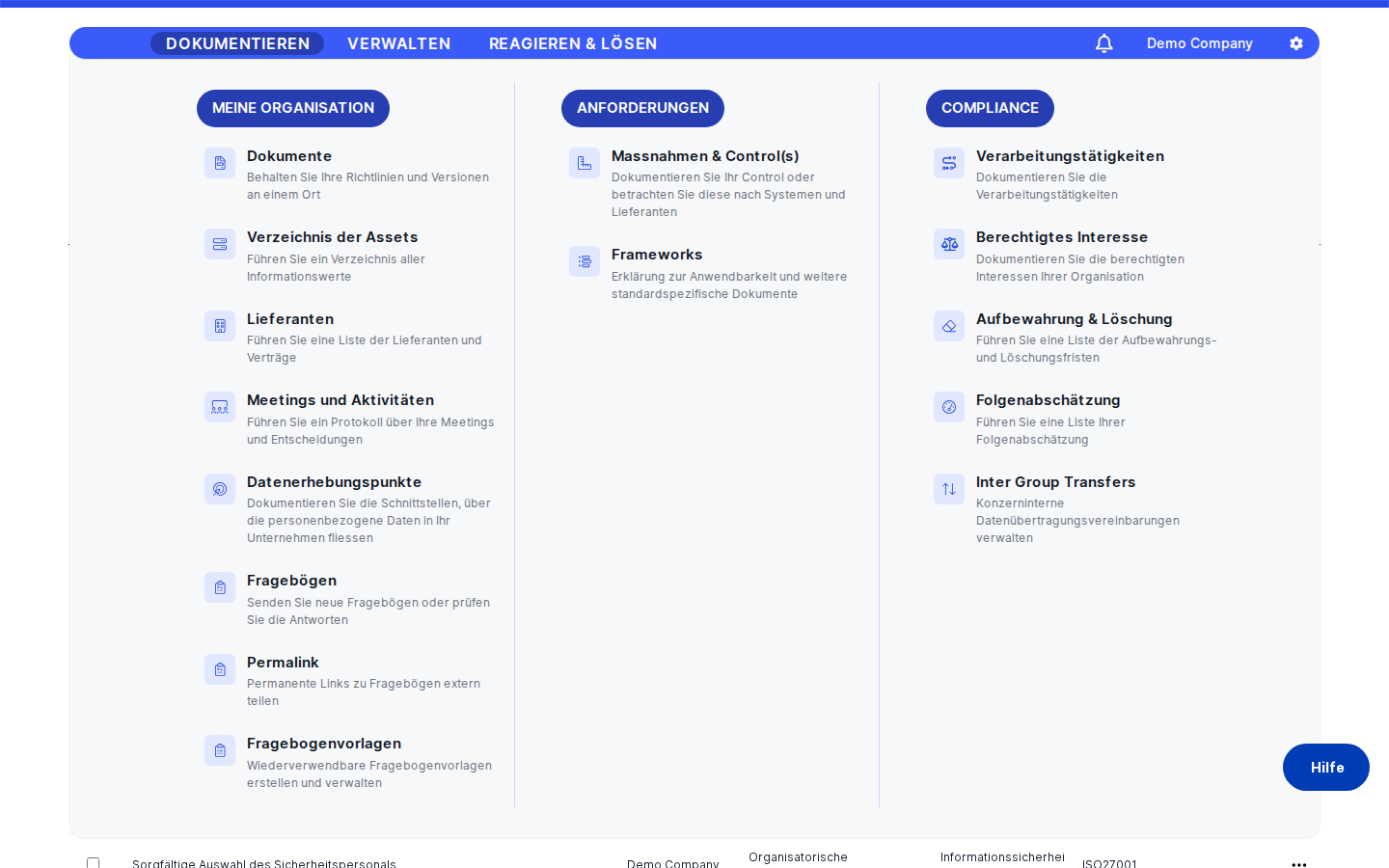
In the left-hand navigation sidebar, click TOMs. This is a top-level menu entry — there is no sub-menu step to navigate through first. DPMS takes you directly to the list.
You need at least read access to the TOMs module to see the list. If your account has been restricted to "own/assigned" access, the same screen opens but only shows TOMs where you are listed as responsible. If you have neither level of access, DPMS shows a "Forbidden" page instead — contact your administrator to have the correct role assigned.
What you see
The screen is divided into two parts. At the very top, below the "TOMs" heading, sits the action bar: the Create button on the right, the JSON and XLSX export buttons beside it, and the tab bar with status filters just below. A search field sits alongside the tabs.
The rest of the screen is occupied by the TOM table. Each row is one control, showing five columns: Name, Type, Domain, Standard, and Maturity. A checkbox on the far left of each row lets you select multiple records for bulk actions. A three-dot … menu on the far right of each row gives you quick access to per-record actions. As you scroll to the bottom of the table, the next batch of TOMs loads automatically — there is no "next page" button.
If your organisation participates in group-sharing with other companies in your group, you may notice a "Companies consulted" indicator near the tabs, and individual rows may show a badge indicating shared or pending-change-request status.
Working with this screen
Adding a new TOM manually
When you have documented a new safeguard — say, a newly implemented "Encryption in transit" control — and need to record it in DPMS, click the animated Create button in the top-right corner. A small dropdown appears with two options. Choose the first (manual creation) and DPMS navigates you to the TOM creation form, opening at the General tab.
Here you fill in:
- The Name (supports multiple languages if your platform is configured for them)
- The Type — for example "Technical" or "Organisational"
- The Domain — the security category such as "Encryption" or "Access Control"
- The Standard the control maps to, such as "ISO 27001 A.10" or "GDPR Art. 32"
- A Description explaining what the control does
- The Responsible Person and an initial Status (typically "Draft")
Click Save. DPMS creates the record and takes you to the new TOM's detail page. The next time you visit the TOMs list — or after a page refresh — your new control appears in the table.
Tip: TOM names are multilingual. If your organisation operates in multiple languages, fill in the name in all active languages so colleagues and the MCP agent can find the control by name regardless of their interface language.
Importing a set of controls from a file
If you have received a .json export of controls from another DPMS environment — for example, a set of baseline ISO 27001 controls from your group's headquarters — you can import them all at once without creating each one manually.
Click Create and choose Import from the dropdown. Your operating system's file picker opens. Select the .json file (you can select multiple files at once) and click Open. DPMS shows a loading spinner while the backend processes each record. When the upload is complete, the page reloads at the TOMs index and all imported records appear in the table, ready for you to review, refine, and assign to responsible persons.
If any records fail validation, DPMS surfaces error messages as notification toasts — check these to understand which records need correction before importing again.
Heads up: If you click Import and the file picker never opens, your account does not have the import permission. There is no visible error message — the option simply does nothing. Ask your administrator to grant you the correct import role.
Finding the right TOM quickly
With dozens or hundreds of controls, scrolling is impractical. Use the search bar at the top of the table to narrow results in real time. Typing "encryption" immediately filters the list to all controls whose name or indexed fields contain that word. Clearing the search box restores the full list.
For more targeted filtering, use the tab bar above the table to switch between status buckets — for example, showing only "Active" controls before an audit, or only "Draft" controls that still need approval. DPMS remembers which tab you last used, so if you navigate away and return, the same filter is still active.
You can combine tabs with the filter controls (dropdowns or chips) that appear alongside the search bar. An information security manager might, for example, select the "Technical" type and the "Access Control" domain together to see only the controls relevant to a specific workstream.
Heads up: Active filters persist across navigation within the same browser session. If the table looks unexpectedly sparse when you arrive, check whether a filter chip is active and clear it.
Exporting TOMs for an audit or report
When you need to hand off a list of controls to an auditor or include them in a compliance report, use the export buttons above the table. DPMS respects whatever filters and searches you have active, so only the records currently visible in the table are included in the download.
Click XLSX to download an Excel spreadsheet containing the Name, Type, Domain, Standard, and Maturity columns for every visible TOM. This file opens directly in Excel or any compatible spreadsheet application and is ready to attach to your audit package. Click JSON if you need a machine-readable export — for example, to import the controls into another DPMS environment.
Tip: Before exporting, switch to the Active tab and confirm your filters are set correctly. That way your export reflects exactly the subset of controls you intend to include, not your entire library.
Reviewing and editing an individual TOM
Click anywhere on a table row (or on the TOM's name specifically) to open its full detail view. From there you can review the description, update the responsible person, attach evidence documents, link the control to risk scenarios and assets, and run workflow reviews.
If you only need to make a quick change without entering the detail view, use the … trailing-actions menu at the right end of the row. This gives you direct access to Edit (which opens the edit form) and Delete for that specific record.
To delete multiple outdated controls at once, tick the checkboxes on the left of each row you want to remove. A Delete button appears in the bulk-action bar at the top of the table. This is faster than opening each record individually.
Heads up: The "select all" checkbox selects only the rows currently loaded in the table — not every TOM in the database. If you are working with a very large library and need to delete everything matching a filter, scroll to the bottom first to ensure all matching records have loaded before selecting all.
Understanding shared TOMs from your group
If your organisation is part of a group that shares controls centrally, some rows in the table will carry a "Companies consulted" indicator or a pending change request badge. These indicate that the TOM originated from (or is being reviewed by) another organisation in your group.
TOMs with a pending change request badge have an outstanding proposal from a consulting organisation that has not yet been accepted or rejected. You can still open and edit these TOMs locally — the badge is informational. To review and resolve the change request itself, open the TOM's detail view and use the options menu there.
Read-only shared TOMs — those that you can view but not edit — will show a restricted editing experience when you click into them via the trailing-actions menu.
Field reference
The five columns shown in the table correspond directly to the fields available when you create or edit a TOM:
- Name — The control's title, displayed in your active language with a fallback to the default language. Required for the record to be meaningful; empty names may appear on records imported from incomplete data.
- Type — The classification of the control: typically "Technical" or "Organisational". Optional — records without a type are still valid in the system.
- Domain — The security or compliance category, such as "Access Control", "Encryption", or "Physical Security". Chosen from a fixed list. Optional.
- Standard — The compliance framework this control maps to, such as "ISO 27001", "NIST CSF", or a custom framework. Optional. A TOM does not need to be mapped to a standard to be used in DPMS, but mapping enables cross-module compliance reporting.
- Maturity — Reflects how fully implemented and effective the control is. This value is derived from linked risk-scenario and asset-implementation data, not set directly on this screen. Newly created TOMs will show an empty maturity until they are linked to assets and assessed. Note: the Maturity column cannot be sorted — this is intentional because maturity is a calculated value, not a simple attribute.
How this connects to the rest of DPMS
The TOMs list is both a destination and a source. Every module that involves controls — Risk Scenarios, ROPA, DPIA, Vendors, Assets, Projects — pulls its list of available TOMs from the same internal store that this screen populates. If a user navigates directly to, say, a Risk Scenario edit form without having visited the TOMs list first in their session, the TOM dropdown on that form may appear empty. Visiting the TOMs list at least once per session ensures the dropdown is populated everywhere else.
From this screen, you can reach:
- TOM detail view — click any row. The detail view has tabs for General information, Documents, Relevant Risk Scenarios, Assets, ROPA, DPIA, Vendors, Projects, Tasks, Assessments, Workflows, and Manage Access. Everything needed for a full compliance picture of a single control lives there.
- TOM creation/edit form — via the Create button or the trailing-actions Edit option.
- Group Sharing view — available when group sharing is enabled in your IT settings. Use this to push a newly approved control to subsidiary organisations.
Other screens that link back here:
- The TOM detail view and the creation/edit form both have "back" navigation pointing to this list.
- Global search results for TOM records link to the TOM's detail page, which in turn returns here.
- Workflow notifications that relate to a TOM may surface a link back to this list.
Downstream effects of what you do here:
- Controls you create or import become available as options in the TOM dropdown on Risk Scenario, ROPA, DPIA, Vendor, Asset, and Project forms.
- Maturity data set through the asset-implementation workflow here flows into organisation-level maturity dashboards and risk posture views.
- TOMs that participate in workflow reviews will show a "pending change request" badge on this list when a review is outstanding.
Tips & common pitfalls
Tip: After a bulk import, DPMS reloads the index page and restores your last active tab. If you imported TOMs with "Draft" status but were previously on the "Active" tab, the new records will not be visible until you switch to "All". Do not assume the import failed — check your tab filter first.
Heads up: The Maturity column cannot be sorted. This surprises users who want to rank controls by maturity for a quick health check. To work with maturity data, open individual TOM details or export the list and sort in Excel.
- Empty TOM dropdowns elsewhere in DPMS: The TOM selector used on Risk Scenario, ROPA, DPIA, Vendor, and Asset forms is populated from an internal cache filled when the TOMs module is loaded. If a colleague reports that the TOM dropdown is empty on another form, ask them to visit the TOMs list once — this warms the cache.
- Shared TOMs have restricted editing. TOMs that come from a group-sharing relationship may redirect you to a shared view rather than the standard edit form when you click Edit in the trailing-actions menu. This is expected — editing shared controls is governed by the group's sharing configuration.
- The Import option is silently inactive without the right permission. If clicking Import does nothing, your role does not include the import permission. There is no error message — the file picker simply never opens. Ask your administrator to adjust your permissions.
- Pending change request badges do not block editing. An orange or coloured badge on a row means there is an unanswered change request from a consulting organisation. You can still open and edit the TOM locally. Resolving the change request happens in the TOM's detail view, not from this list.