
Create a new company
Create a New Company
Before you can do almost anything in DPMS — build a Record of Processing Activities, catalogue an asset, assess a vendor, or assign a task — the platform needs to know which legal entity that work belongs to. The Create a New Company screen is where you register those entities. Whether you are onboarding a new client, adding a subsidiary to a group structure, or setting up an external DPO consulting relationship, this is your starting point.
How to open it
- In the left sidebar, navigate to Compliance Settings.
- Select Companies from the list of configuration items.
- On the Companies list screen, click the Create button. A small animated menu appears.
- Choose the option to create a new company from that menu.
You will land on the creation form at /compliance/settings/companies/create.
Permission required: You need either the create companies or the edit companies permission to access this form. If you only have read access to companies, you can view the Companies list but the creation form will show an access-denied page.
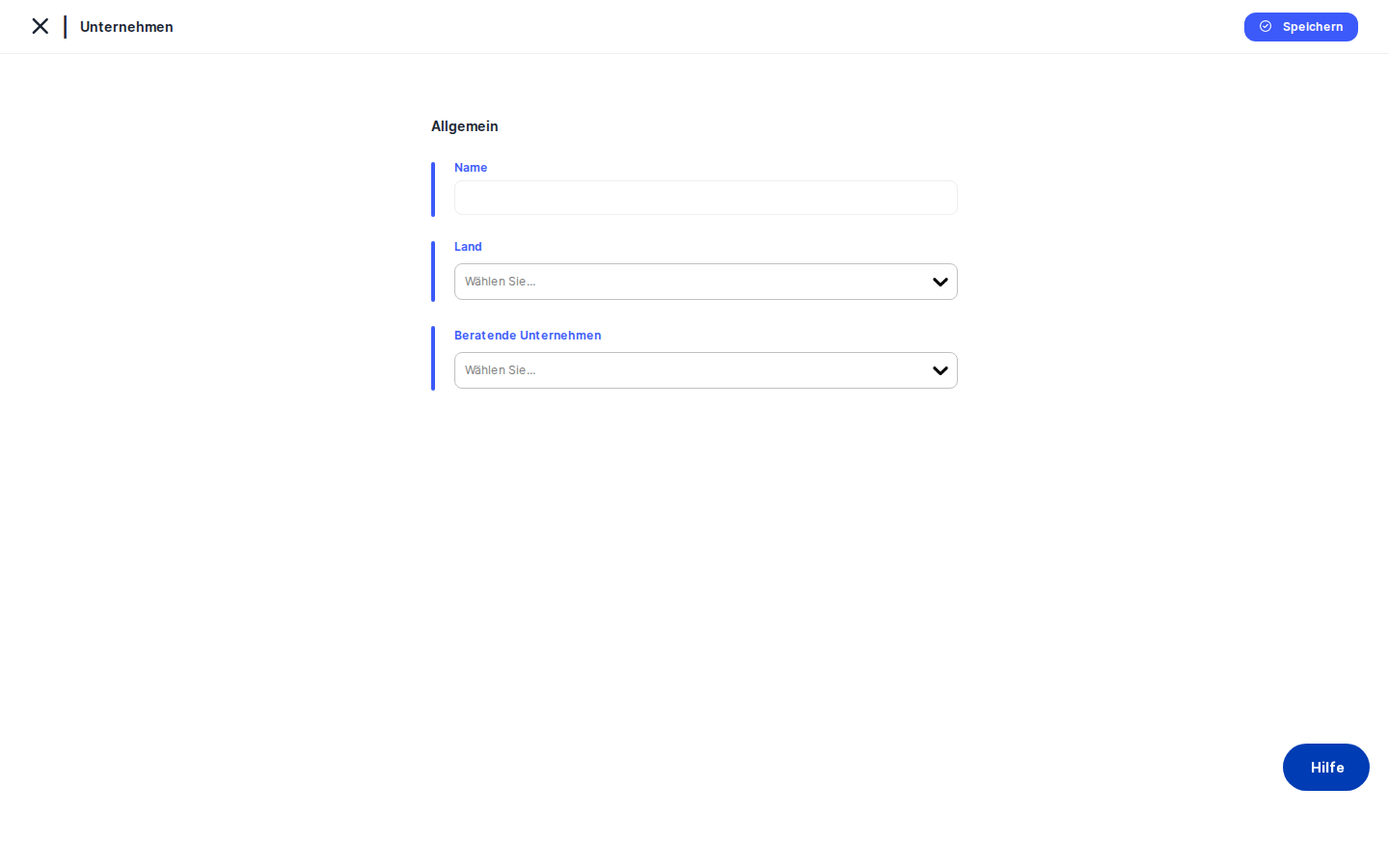
What you see
The screen follows DPMS's standard creation layout. A back arrow sits to the left of the Companies page title at the top; the Save button appears in the top-right corner. A thin blue accent line runs down the left side of the white form card — the familiar visual cue that you are in creation mode.
Unlike the multi-tab detail screens you may have seen elsewhere in DPMS, this form has no left-side navigation menu and no tabs. It is intentionally minimal: just four controls stacked vertically under a bold General section heading. Every field label appears in blue, consistent with the platform's editable-field styling. This keeps things focused so you can register the company quickly and move on.
Working with this screen
Setting up a company for the first time
When you are onboarding a new organisation or adding an internal subsidiary, the process is straightforward.
- Enter the company name. Click the
Namefield and type the full legal or operational name — for example, Berlin Operations GmbH or Marketing Subsidiary AG. This name will appear in every dropdown, table, breadcrumb, and linked-record selector across the entire platform, so make it recognisable. - Select the country. Click the
Countrydropdown and choose the country where the company is registered or primarily operates. This is not just a label — it provides geographic context used in compliance reporting and data-transfer assessments. For example, selecting Germany signals GDPR applicability; selecting Switzerland signals nFADP relevance. - Leave
Consulting Companiesempty if this is an internal entity with no external DPO or advisory relationship. You can always add that relationship later by editing the company. - Click
Save. The button transitions through its visual states — it will briefly show a saving animation and then settle on saved (or show an error if something went wrong). On success, the new company is immediately available in every company-selection dropdown across DPMS — in ROPAs, asset records, vendor assessments, task assignments, and user management. There is no need to refresh the page.
Setting up an external DPO or consulting relationship
If a law firm, external DPO service, or data protection consultancy will be managing compliance on behalf of this company, you can establish that relationship right here at creation time.
- Fill in the
NameandCountryfields as described above. Use the client organisation's legal name and country, not the consultant's. - Open the
Consulting Companiesmulti-select dropdown. Search for and select the consulting firm or firms. You can select multiple consulting companies if more than one external party has oversight. - Read the yellow warning banner that appears immediately below the field as soon as you make a selection. It explains, in plain language, that the company you are creating — referred to by the name you typed in the
Namefield — will be accessible to the selected consulting companies, and that those firms will have supervised read access to its compliance data. The banner names the consulting companies explicitly so there is no ambiguity.
If the Name field is still empty when you add a consulting company, the banner will display a placeholder for the company name. This is a good prompt to double-check that you have also filled in the name before saving.
- Once you have read and confirmed the banner reflects your intention, click
Save. The consulting relationship is stored immediately. Both the client company and the consulting firm will reflect this relationship in the Companies list.
Saving without validation errors
DPMS validates two fields before submitting: Name and Country. Both are required, but the form does not mark the country field with a visible asterisk until you attempt to save without it.
If you click Save while either field is empty, the Save button briefly enters its not saved state, a red toast notification appears in the corner of the screen, and a validation indicator highlights the missing field. Simply fill in the missing value and click Save again — the form retains everything you already entered.
Abandoning a partially completed form
If you start filling in the form and then need to navigate away, click the back arrow next to the Companies page title. This returns you to the Companies list without saving anything to the database.
However, be aware that DPMS saves draft form data locally as you type. If you navigate back and then return to the create form, you may find your previous entries — including any consulting company selections — still pre-populated. This is intentional: it protects against accidental data loss. If you want to start completely fresh, simply clear the fields manually before proceeding.
Field reference
Name— The human-readable display name for the company. This is the label that appears everywhere in DPMS. Required. There is no character limit enforced in the UI, but keep names concise enough to be readable in dropdown lists. Whitespace at the start and end of the name is trimmed automatically on save.Country— A single-select dropdown of standardised country values. Associates the company with a specific jurisdiction. Required. Used in compliance reporting and data-transfer assessments. The dropdown is searchable — start typing the country name to filter the list.Consulting Companies— A multi-select dropdown of other companies already registered in DPMS. Optional. Selecting one or more companies here designates them as external advisors with supervised read access to this company's compliance data. Selecting any value also marks the company being created as a consulted company, which is reflected on both company records. The dropdown excludes the company currently being edited to prevent self-referencing.
How this connects to the rest of DPMS
Registering a company here has unusually broad impact across the platform. The moment a company is saved, it is pushed into the global company selector used throughout DPMS. From that point on, the company appears as an option in:
- Records of Processing Activities (ROPAs) — the owning company field
- Asset records — the responsible company field
- Vendor assessments — the contracting company
- Task assignments — the organisational company scope
- User management — assigning users to companies
This means that if a company is not yet registered here, the team cannot assign any compliance objects to it. Creating the company is always the first step when setting up a new entity in your DPMS instance.
The consulting/consulted relationship set up on this screen also directly controls data visibility. A consulting company gains supervised read access to the consulted company's records across the platform. If you do not set up this relationship correctly, an external DPO or consultancy will not see the client's data even if they have a user account in the system.
After completing this screen, the recommended next step is to navigate to the newly created company's detail view and verify the record looks correct. From there, you can begin assigning users, building ROPAs, and linking assets and vendors.
Tips & common pitfalls
Heads up: BothNameandCountryare required, but the form only tells you the country is missing after you try to save. Do not assume the country is optional just because there is no asterisk — always fill in both fields before clickingSave.
Heads up: The consulting relationship grants another organisation read access to this company's compliance data. The yellow warning banner appears before you save specifically so you can confirm this is intentional. Read it carefully before proceeding.
- The consulting relationship is set from the consulted company's side. When you create Company A and select Company B as a consulting company, it is Company A that becomes consulted and Company B that becomes the consultant. If you set this up the wrong way around, the visibility permissions will be reversed. Double-check which organisation's form you are filling in before selecting consulting companies.
- Draft data persists if you navigate away. The platform saves your in-progress form entries locally. If you return to the creation form after leaving without saving, you may see your previous draft. Clear the fields if you want to start fresh.
- The new company is available across all open tabs immediately after saving. There is no need to refresh other screens — the company selector everywhere in DPMS updates in real time once the save succeeds.
- Read-only users will hit an access-denied page if they navigate directly to the creation URL. The Companies list may be visible to users with read-only access, but the creation form requires either the create or edit companies permission. If you see an access-denied page, contact your system administrator.