
Configure AI provider credentials
This screen lets you configure which AI provider DPMS uses to power AI features and the MCP agent. You enter the provider's credentials (API key, region, etc.), pick a default model, and toggle the configuration on or off.
Getting there
Open IT Settings, expand the AI menu, then click Credentials. Access requires the AI IT settings read permission (P_R_IT_SETTINGS_AI). Without it the page is replaced by a 403 screen.
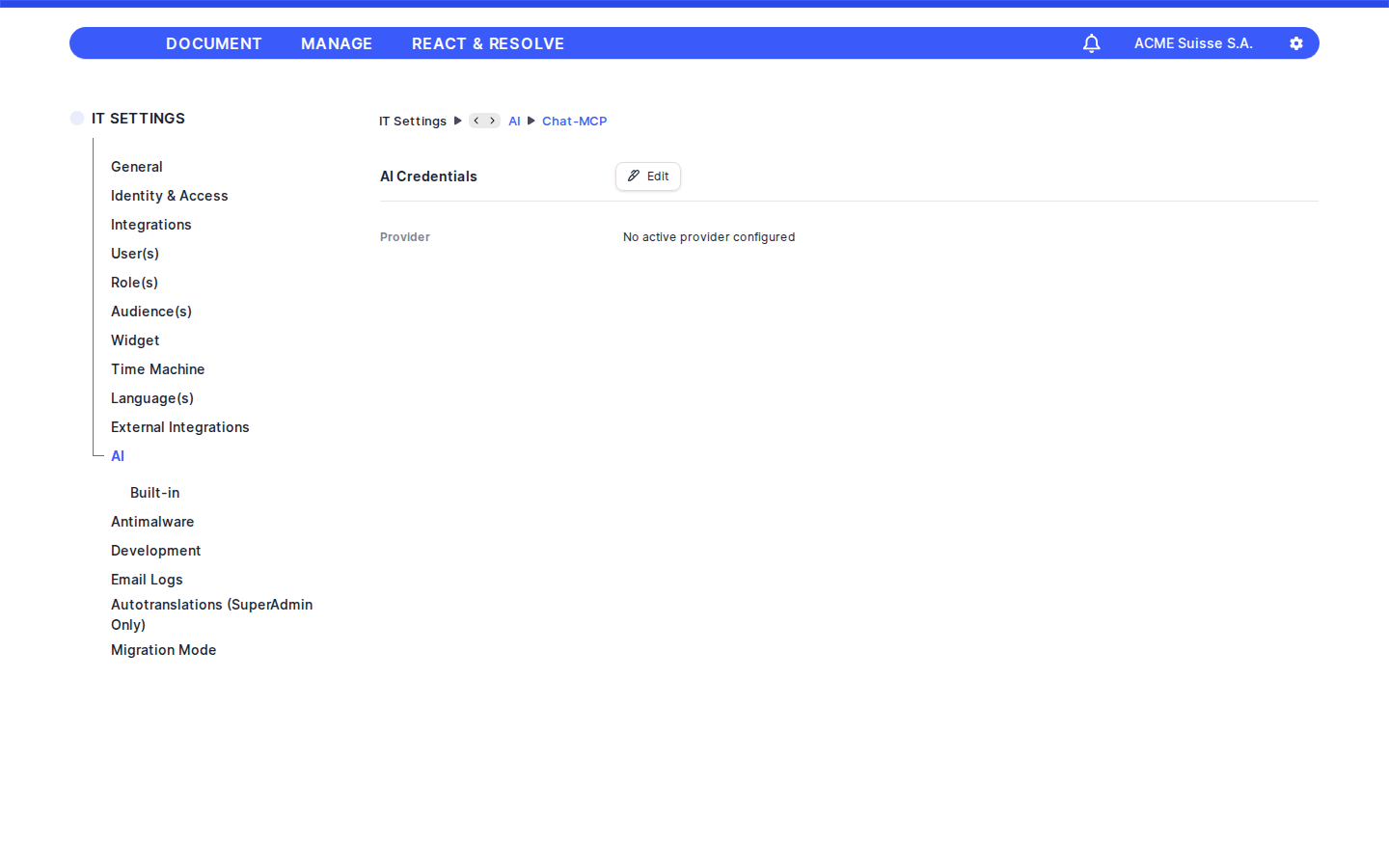
Header / toolbar
This screen has no custom toolbar. The only navigation elements are:
- Breadcrumb trail at the top:
IT Settings›AI›Credentials. Each crumb is clickable and jumps to the corresponding section of the IT Settings menu. Editaction — shown on the data card. Clicking it switches the screen to edit mode. The button is always enabled for users who can see the page; there is no separate "edit" permission.Saveaction (only in edit mode) — submits the credentials form. On success it redirects you back to the read-only view, updates the active-credential status, and stores the new context window for use by other AI features.
Filters & search
Not applicable. The screen shows a single configuration record, so there is no search box, filter bar, or pagination.
The "AI Credentials" card
In view mode the screen displays a single card titled AI Credentials with one labelled row per stored value.
If no credential has been configured yet, you will only see:
- Provider —
No active provider configured.
If a credential exists, the card shows the rows that apply to the chosen provider. Typical rows include:
- Provider — the human-readable name of the provider (Anthropic, OpenAI, Google, AWS Bedrock).
- One row per provider field that has a stored value. The labels come from each provider's configuration. Examples: API key, default model, AWS region, Vertex AI flag, Google project and location, OpenAI
reasoning_effort. - Context Window — total tokens supported by the selected model, formatted with thousands separators and the
tokenssuffix (for example,200,000 tokens). Shown only when a context window is stored. - Max Output — maximum output tokens for the selected model, formatted the same way. Shown only when stored.
- Status — either
ActiveorInactive, reflecting whether DPMS will actually use this configuration.
Sensitive values such as API keys are stored encrypted server-side; what you see on screen is whatever the backend returns for display.
Editing credentials
Click Edit to open the dynamic credentials form. The fields shown depend on which provider you choose.
Always visible
- AI Provider (
provider) — required dropdown listing every supported provider (Anthropic, OpenAI, Google, AWS Bedrock). Not clearable. Changing the provider resets all other fields, switches theActivatedtoggle off, and (for Google) resets thevertexaiflag.
Dynamic provider fields
The form then renders the fields defined for the selected provider:
- Text fields — single-line inputs with a placeholder of the form
Enter <label>. Required if marked so by the provider configuration. - Credential fields (API keys, secrets) — text inputs with masked preview behavior:
- When you open an existing credential, the field shows the first 3 characters of the stored value followed by
*for every remaining character. - As soon as you click or focus the field, the preview is cleared and the input switches to a password field, ready to accept a new secret.
- Selectable fields — dropdowns whose options come from the provider configuration. Clearable when the field is optional. When you pick a
default_modeland that model has known token limits, two informational pills appear under the dropdown: - Context Window: total tokens, formatted with thousands separators.
- Max Output: maximum output tokens.
- Boolean fields — switches with the field label on the right. Light blue when on, gray when off.
Provider-specific behavior
- Anthropic — typically requires an API key and a default model selection.
- OpenAI — requires an API key and default model. If the chosen model is one of the supported reasoning models, an additional
reasoning_effortselector appears. If you switch to a non-reasoning model, thereasoning_effortvalue is automatically dropped from the saved payload. - Google — exposes a
vertexaitoggle: - Off → uses standard Google AI;
projectandlocationare hidden and not saved. - On → adds Project and Location fields, which become required for Vertex AI.
- AWS Bedrock — typically requires AWS access key ID, AWS secret access key, AWS region, and a default model.
Activated toggle
Activated(active) — switch shown below the provider fields. When on, DPMS treats this as the active credential set used by AI features and the MCP agent. New credentials default to off; existing credentials show their current state. Light blue when on, gray when off.
Saving
Click Save in the form's title bar to submit. DPMS:
- Strips fields that don't apply to the current selection (for example,
reasoning_effortfor non-reasoning models, orproject/locationwhen Vertex AI is off). - Posts the configuration to the server.
- On success: returns you to the read-only card, updates whether an active AI credential exists, and stores the selected model's context window so other AI features can size their prompts correctly.
- On error: keeps you on the form so you can correct the input. Validation/error messages are surfaced via the standard notification system.
Permissions
P_R_IT_SETTINGS_AI— required to view the screen. Missing this permission renders the 403 Forbidden page.- No additional permission is enforced inside this screen. Anyone who can open the page can also use
EditandSave. Manage who can see this screen via your role configuration.
Tip: Only one provider configuration is active at a time. Switching providers replaces the previous configuration entirely — make sure to copy any keys you still need before saving.
Tip: The Context Window and Max Output values surfaced under default_model come from the model catalog inside DPMS. If you don't see these pills, your selected model has no preset limits and DPMS will fall back to provider defaults.Tip: API keys are masked when displayed. Clicking inside the field clears the masked preview — only type a new key when you actually want to replace the stored secret.