
Browse meetings and activities
Browse Meetings and Activities
The Meetings and Activities screen is your organisation's central register for every data protection meeting, committee session, workshop, training event, and other compliance-related activity. Instead of scattered calendar invites or spreadsheet logs, DPMS gives each event its own structured record — complete with a date, responsible persons, participants, meeting notes, linked tasks, and linked documents. This matters both for day-to-day work and for audits: when a regulator or internal reviewer asks "what did your DPO committee discuss last quarter and what actions came out of it?", the answer is right here. Compliance officers, DPOs, risk managers, and auditors all rely on this screen regularly.
How to open it
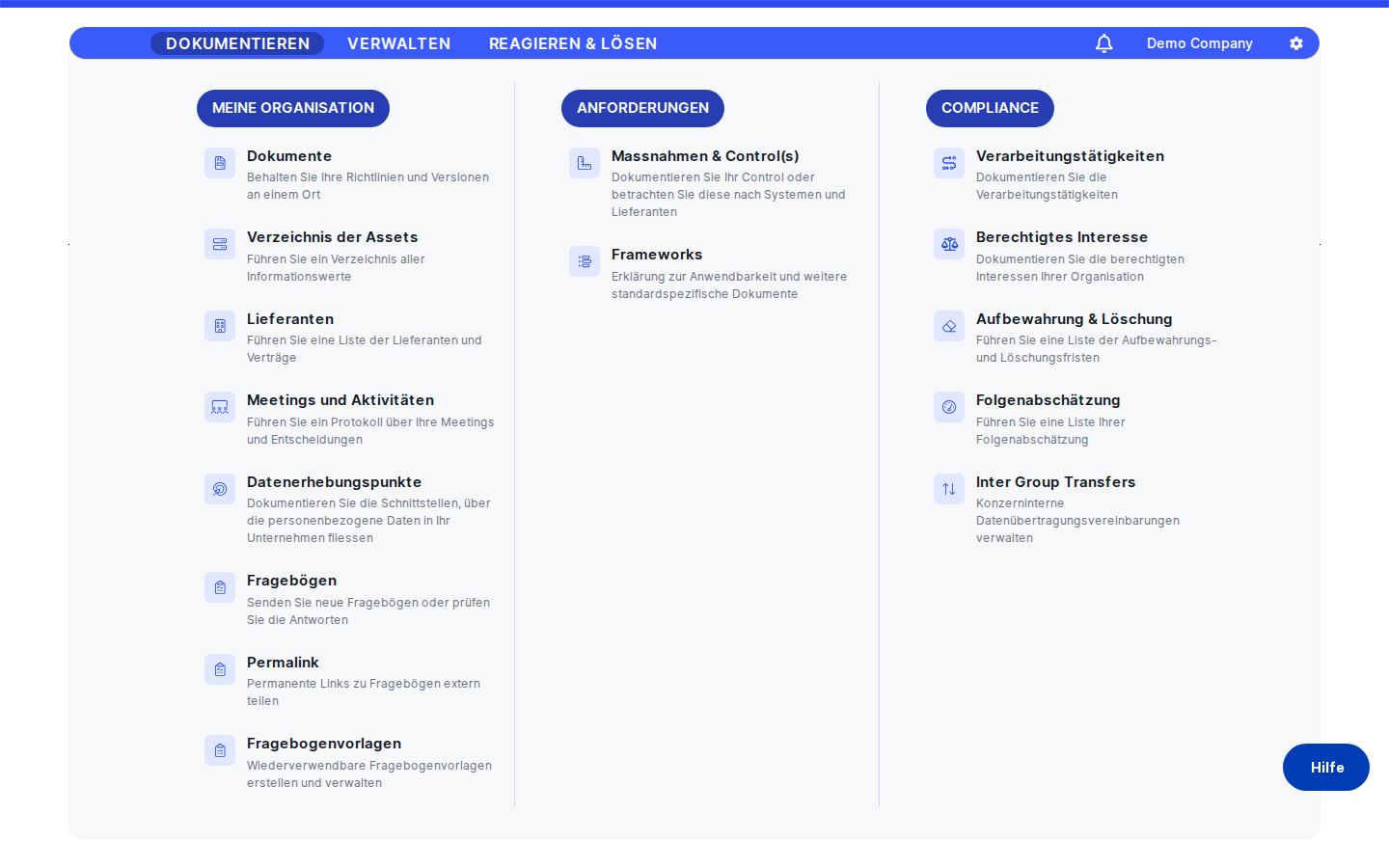
Navigate to Meetings and Activities in the main sidebar. It appears as a top-level item — you do not need to expand a parent section to find it. The screen is available to anyone who has been granted at least read access to the module. Users who can only see records they are personally responsible for will find the same screen but with a narrower list of results.
What you see
The screen opens on a list of all meeting and activity records your account has permission to view. At the top of the content area you will find an action bar containing a search field on the left, status filter tabs just below or alongside it, and a Create button on the right. Two small export labels — JSON and XLSX — sit in the same bar and let you download the current list at any time.
Below the action bar, a data table fills the rest of the screen. Each row represents one meeting or activity and shows three columns: Name, Type, and Date. Clicking any row takes you straight to that record's detail page. If your list is long, simply keep scrolling — new records load automatically as you reach the bottom of the page, so there is no "next page" button to click.
When you tick one or more checkboxes on the left of each row, a bulk-actions toolbar appears, giving you options such as deleting multiple records at once.
Working with this screen
Creating a new meeting record
After a data protection team call or committee session, you will typically want to log it right away. Click the Create button in the top-right corner of the action bar. A small dropdown menu opens with two choices: create a record manually, or import records from a file. Select the first option to open the creation form.
On the General tab of the form, fill in the meeting's name (the field supports multiple languages, so you can enter the name in whichever language is relevant), select a meeting type from the type tag selector (for example, "Committee Meeting" or "Training"), set the date and time using the date picker, add participants by searching for their names, and write a summary of the discussion in the Meeting Notes area. Use the Responsible Person selector — shown in the action panel at the top of the form — to assign accountability for the record itself.
When everything looks right, click Save. DPMS creates the record and takes you directly to its detail page, where you can immediately start linking tasks and documents to it. From that point on, the record appears in the index list for everyone with appropriate access.
Searching and filtering the list
With many records on screen, the quickest way to find a specific one is to type its name — or part of it — into the search bar. The list updates to show only matching records. If you are looking for meetings in a particular state of completion, click one of the status filter tabs (for example, Active, Completed, or any custom status your organisation has configured). The two filters work together: you can search for "DPO quarterly" and simultaneously have the Completed tab selected to see only closed DPO quarterly meetings.
The status tab you last used is remembered, so if you navigate away and come back, the same filter is still applied. If a record seems to be missing, check whether you have a status filter active — switching to All will show everything within your read permission.
Exporting records for an audit or report
Auditors and compliance managers often need a snapshot of meetings to include in evidence packages or status reports. Apply any search or status filter you need first, then click either JSON or XLSX in the action bar. DPMS will download a file containing all records that match your current filter — not just the rows visible on screen. If you want to export everything, make sure the All status tab is selected and the search bar is clear before clicking.
Importing historical meeting records
If your organisation is migrating from a spreadsheet or another system, you can bulk-import existing records using a JSON file. Click the Create button and choose the Import option from the dropdown. Your operating system's file picker opens — select one or more .json files prepared in the correct DPMS export format. The files are uploaded immediately, and the page refreshes to show the newly imported records alongside existing ones.
Note that only .json files are accepted for import, even though the export function can produce both JSON and Excel files. If you only have an Excel file, you will need to convert it to the correct JSON schema before importing. You also need specific import permission to use this feature — if the file picker does not open after clicking Import, ask your administrator to check your access rights.
Deleting multiple records at once
If you need to remove several obsolete records, use the row checkboxes rather than deleting them one by one. Tick the records you want to remove, or use the header checkbox to select everything matching the current filter. A bulk-actions toolbar appears — click the delete action and confirm when prompted.
Heads up: If you use "select all" while a search or status filter is active, the deletion will apply to every record matching that filter on the server — including records that have not yet scrolled into view. Always double-check your filter before confirming a bulk delete.
Field reference
The index table itself shows only three columns, but when you open or create a record the following fields matter most:
- Name — The meeting or activity's title. Stored in multiple languages; the table displays the value matching your current language, falling back to the default if a translation is not available. A record without a name should be considered incomplete.
- Type — A tag categorising the activity (for example, "Workshop" or "Audit"). Options come from the activity type tags configured by your administrator under Compliance Settings → Tags. If the selector is empty, no type tags have been created yet — you can also add a new type directly from the selector without leaving the form.
- Date — The scheduled date and time of the event, stored as a precise timestamp. Leaving this blank is allowed but makes it harder to sort and report on the record later.
How this connects to the rest of DPMS
Meetings and Activities does not exist in isolation — it is designed to be a hub that ties together other parts of your compliance programme:
- Tasks module: Open action items can be linked to a meeting record from the Tasks tab on the record's detail page. This creates a visible, traceable connection between a discussion and its resulting action.
- Policies and Documents module: Relevant policies, procedures, or other documents can be attached to a meeting record via the Documents tab. For example, if a privacy notice was revised during a workshop, you can link the policy document directly to that workshop's activity record.
- Workflow engine: Each meeting or activity can have an automated workflow triggered against it. The Workflows tab on the detail page shows the status of any running workflows, and any workflow-generated required actions appear under a dedicated sub-tab.
- Compliance Settings → Tags: The Type field on each record draws its options from the
meetings_activities_typestag type. If no types exist yet, ask your administrator to create at least one in Compliance Settings → Tags. - Compliance Settings → Statuses: Custom statuses you see as filter tabs (beyond the defaults) are configured in Compliance Settings → Statuses. If a status tab is missing that you expect to see, this is where it is controlled.
- User Management: When you add a participant who does not yet have a DPMS account, the system creates that user on the spot. This is intentional — it means adding a meeting participant can indirectly create a new system user, which your IT administrator will see reflected in User Management.
After setting up a meeting record, the natural next steps are to link any tasks that arose from the meeting, attach any documents that were discussed, and set the status to reflect the event's current state in your workflow.
Tips & common pitfalls
Tip: If the Type selector on the creation form is empty, your organisation has not yet configured any activity type tags. Go to Compliance Settings → Tags and create at least one tag of the "Meetings and Activities Types" category. You can also create a new type directly from the selector itself while filling in the form.
Heads up: The index table shows only Name, Type, and Date. Participants and responsible persons are not visible in the list view. If you need to find a meeting by participant name, use the search bar — it searches across more fields than what is displayed in the columns.
- Only JSON files can be imported. The export buttons produce both JSON and XLSX formats, but the import function only accepts
.jsonfiles. If your historical data is in Excel, convert it to the correct JSON schema before importing. - "Read only to assigned" access is narrower than it sounds. A user who can only see records they are responsible for will not see meetings they attended as a participant unless they are also listed as a responsible person on that record. If someone reports that a meeting "doesn't exist," check whether they have read-all permission.
- The status tab filter is remembered between sessions. When you navigate away and return to this screen, the last status tab you selected is restored automatically. If a colleague's list looks different from yours, one of you likely has a different status tab active.
- The activity log (changelog) is not available for this module. Unlike some other DPMS modules, the full history of changes to a meeting or activity record cannot be viewed through the standard activity log button. This is a known platform limitation and is not caused by a permission or configuration issue.
- Bulk delete with "select all" acts on the entire filtered set. Selecting all rows and then deleting removes every record matching the current search and status filter — not just the rows visible on your screen at that moment. Always verify your filter state before confirming a bulk delete.