
Edit a ROPA entry
Editing a ROPA Entry
The ROPA edit screen is the central workspace for keeping your organisation's Record of Processing Activities accurate, complete, and audit-ready. If you are a Data Protection Officer, compliance officer, risk manager, or IT administrator, this is the screen where you will spend most of your structured compliance time — documenting exactly what personal data your organisation processes, why, on what legal basis, and with what controls in place. Almost every other compliance object in DPMS — legal bases, personal data categories, assets, vendors, DPIAs, risk scenarios, and TOMs — connects back to a ROPA entry, which means the quality of what you enter here directly determines the quality of your reports, AI-assisted analysis, and regulatory evidence.
How to open it
- In the left-hand navigation, click ROPA.
- In the overview list, find the processing activity you want to update.
- Click the activity's name to open its detail view.
- Click the Edit button (pencil icon) in the top-right of any section, or click directly on the General section's edit icon to land on the General tab.
You can also jump straight to a specific tab by adding ?tab=personal_data, ?tab=legal_basis, or another tab name to the URL.
Permission required: You need write permission on the ROPA object type to access this screen. If the edit button is greyed out, your account does not yet have edit rights for this record — contact your DPMS administrator.
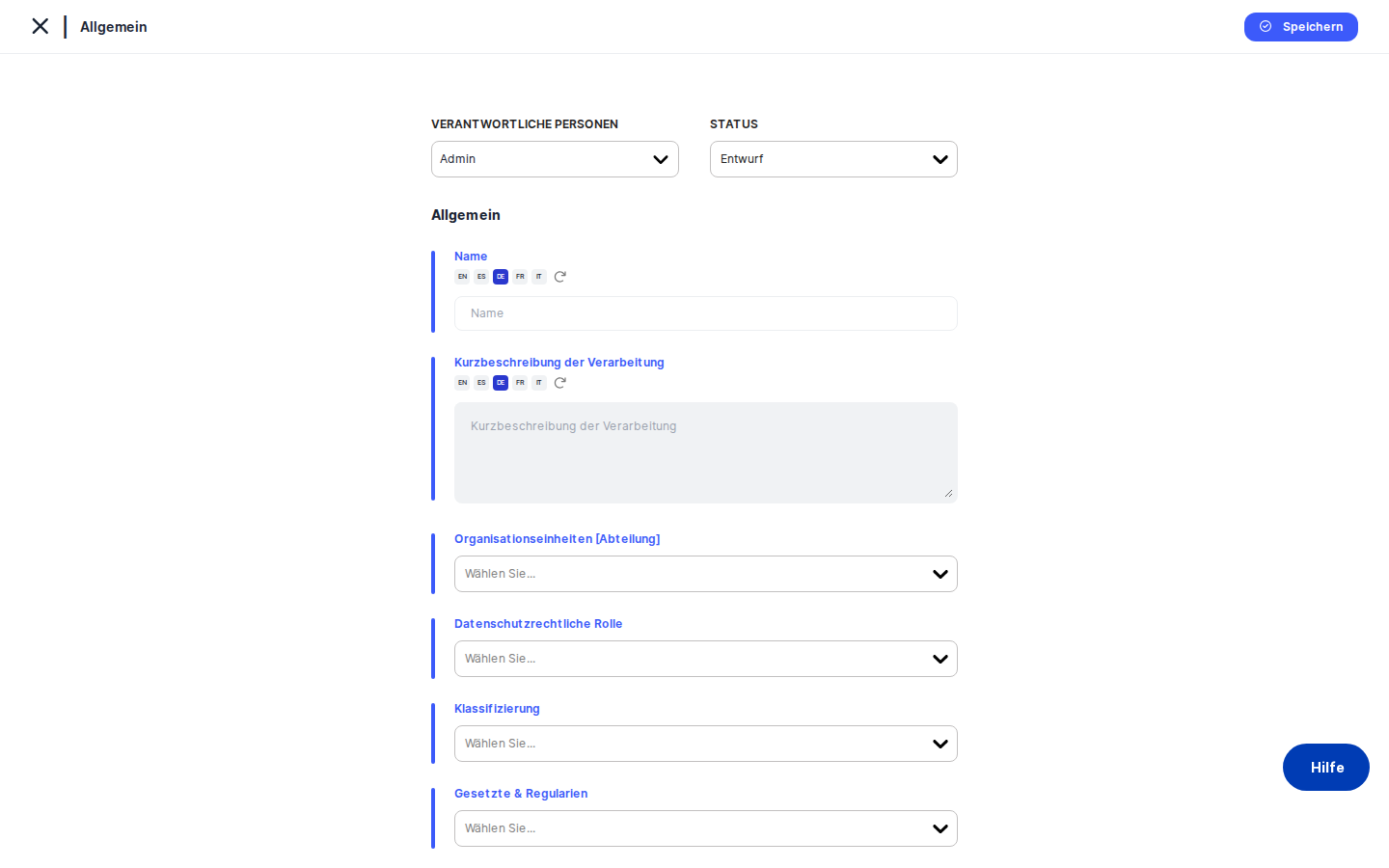
What you see
When you open the ROPA edit screen, the layout is split into two areas. On the left is a collapsible tree menu listing every available tab for this record — General, Personal Data, Affected Persons, Purpose of Processing, Legal Basis, Categories, Assets, External Recipients, Internal Access, Data Collection Points, Retention & Deletion, DPIA, Risk Scenarios, Assessments, Tasks, Documents, Manage Access, and Workflow. Clicking the small circle icon at the far left collapses or expands this menu; the setting is remembered between sessions. At the very top of the page, a breadcrumb bar shows your current location (for example, ROPA › Payroll Processing › Legal Basis) along with left and right arrow buttons that let you jump directly to the previous or next ROPA record in your current filtered list.
The main content area on the right changes completely when you switch tabs. At the top of each tab's content area you will find the status and responsible person bar, which shows the record's current status (for example, Draft, Active, or Under Review), who is responsible for it, and when it was last updated. In the top-right corner is a clock icon that opens the Activity Log — a slide-out panel showing the full history of every change made to this record, including who changed what and when. At the bottom of every tab is a Save button. Saving is tab-specific: clicking Save on the General tab only saves General tab data. If you have made changes on the Personal Data tab and then click Save on the General tab, your Personal Data changes are not yet saved.
Working with this screen
Setting up a new ROPA entry with AI assistance
When your organisation has AI features enabled and you are creating a brand-new processing activity, DPMS can do much of the initial drafting for you. Start by typing the name of the processing activity in the Name field — something clear like "Employee Payroll Processing" or "Customer Newsletter Distribution." Once you have entered a name, an AI Generate button appears at the top of the General tab. Click it and DPMS will attempt to fill in the Brief Description of Processing, Organizational Unit, Applicable Regulations, and will suggest linked Personal Data, Purpose of Processing, Risk Scenarios, Categories, and Assets — all at once, based on the name you entered.
While the AI is working, all fields on the screen are temporarily locked. Once generation is complete, review each suggestion carefully. The AI works from patterns, so it may propose a department like "HR Operations" when the correct one for your organisation is "HR Recruitment." Adjust anything that does not match reality, then click Save at the bottom of the General tab to create the record. You will be redirected to the record's detail view, where you can then open each linked-object tab (Personal Data, Purpose of Processing, and so on) to review and confirm the AI's suggestions there as well — each tab has its own Save button.
Tip: The AI Generate button only appears during initial record creation, before the record has been saved for the first time. If you want AI assistance on an existing record's description field, use the inline AI suggestion button inside the Brief Description of Processing field.
Completing the General tab fields
The General tab holds the core identity of the processing activity. Here is what each area does and when you need it:
The Status badge and Responsible Person area at the top of the tab are saved immediately when you change them — they do not wait for the Save button. Click the status badge to change it (for example, from Draft to Active once a record has been reviewed). Click the responsible person area to search for and add or remove people assigned to this activity.
The Organizational Unit dropdown links the activity to a specific part of your company hierarchy. If your organisation has departments configured, the label will include the department name.
The ROPA Type (also called Legal Role) dropdown is where you specify whether your organisation is acting as a Controller, a Processor, or a Joint Controller for this activity. This is one of the most important fields from a legal standpoint. If you select Processor, an additional field — Vendor / Controllers — appears below. This is where you identify the external organisation that is the data controller and on whose behalf you are processing. You can link an existing vendor or type a new name to create a vendor record on the spot.
The Classification field lets you apply internal tags (such as "HR," "Finance," or "Customer-Facing") to help filter and group activities in reports.
The Regulations field connects the processing activity to the data protection laws that apply — such as GDPR, CCPA, or nFADP. This is particularly important because it filters what appears in the Legal Basis and Categories tabs: only legal bases and special categories that are valid under your selected regulations will be shown. If you later remove a regulation from this field, the system will warn you before saving if any already-linked legal basis or special category becomes incompatible.
The Target Risk dropdown records your organisation's acceptable risk tolerance for this activity (Very Low to Very High). This is a management decision, distinct from the calculated risk score that comes from linked risk scenarios.
The Need to Process field is a free-text area for documenting the business or legal necessity behind the processing — for example, "Processing is required to meet our statutory payroll obligations." Multilingual input is supported.
When all fields are complete, click Save at the bottom of the tab.
Linking personal data, purposes, legal bases, and other objects
Most of the other tabs follow the same pattern: they show a table of items linked to this ROPA entry, and you can add or remove items from that table. Here is how to work with the most important ones.
Personal Data tab: This tab lists the types of personal data involved — for example, "Name," "Bank Account Number," or "Health Data." Switch between viewing individual data types and Collections (grouped templates) using the toggle in the top-right of the table. To link an existing data type, click Link. To create a brand-new type, use the Create dropdown. Click Save when done. Note that if you or a colleague recently toggled between Collections view and individual data type view, the toggle state is remembered in the browser — if the view looks unexpected, simply flip the switch.
Affected Persons tab: Lists the categories of people whose data you process — for example, Employees, Customers, or Minors. Each entry includes a dropdown to specify the approximate Number of Affected Persons (for example, "1–10" or "100–1,000"). Save when done.
Legal Basis tab: Shows the legal grounds for the processing under the regulations you selected on the General tab. The list is pre-filtered to only show legal bases valid under your chosen regulations, making it easier to pick the right one. The Create button here lets you create a new legal basis directly or from a template.
External Recipients tab: Lists third-party vendors or organisations that receive personal data from this activity. For each external recipient, you can also specify the Vendor Type (their role, such as Data Processor or Joint Controller) and — if they are based outside the EEA — the legal basis for the international data transfer. These details are saved per-link, meaning the same vendor can have different roles in different ROPA entries.
After completing any of these tabs, always click Save before switching to another tab, otherwise your changes will be lost.
Documenting risk and linking controls
The Risk Scenarios tab is where risk managers document what could go wrong during this processing activity and what controls are in place to mitigate those risks.
Before you can use this tab, your organisation needs to have configured a Process Risk Model in the Risk Settings area of DPMS. If no model has been set up yet, the tab will show an error message with a direct link to the Risk Settings configuration screen when you try to link a scenario.
Assuming a risk model is in place, the tab shows a list of risk scenarios already linked to this ROPA entry. Click on any scenario to expand its detail form. Inside, you will find:
- A TOMs sub-tab where you can link or unlink Technical and Organisational Measures (controls) that mitigate this specific risk.
- A Risk sub-tab with radio-button tables where you rate the likelihood and the damage for each risk tag from Very Low to Very High. As you make your selections, DPMS automatically calculates a numeric risk score and displays the overall risk level (for example, "High" with a score of 14). A risk slider visualises where the score falls. You can also enter a free-text Reasons for Risk Classification to justify your assessment.
Once you have completed both sub-tabs for each linked scenario, click Save. The calculated risk scores flow through to the ROPA overview dashboard's risk column and to any connected reports.
Restricting access to a sensitive ROPA entry
If a processing activity contains particularly sensitive information — for example, executive compensation data — you can limit who can see it in DPMS portals and filtered views.
Navigate to the Manage Access tab in the tree menu on the left. You will see two sections: Audiences (groups, such as "Legal Team" or "C-Level HR") and Users (specific individuals). Select the appropriate audiences from the dropdown and add individual users by name. When you click Save, the entry becomes visible only to those audiences and users in shared or restricted views.
Field reference
The following fields on the General tab have specific rules or behaviours worth noting:
- Name — Required. The display name for the processing activity. Without a name, AI features will display a warning. Supports multilingual input. Disabled when an AI generation job is running or when this is a child record.
- Brief Description of Processing — A plain-language explanation of what the activity does. Not hard-blocked on save, but essential for AI assistance and audit completeness. Has its own inline AI suggestion button. Disabled for child records.
- Organizational Unit — Links the activity to your company's department or team hierarchy. Not disabled for child records.
- ROPA Type — Selects the legal role (Controller, Processor, Joint Controller). Required to determine which other fields appear. Disabled for child records.
- Vendor / Controllers — Only visible when "Processor" is selected in ROPA Type. Links to the controller on whose behalf you process. You can create a new vendor inline by typing a name. Disabled for child records.
- Classification — Optional tags for grouping. Allows inline creation of new tags. Disabled for child records.
- Regulations — Selects applicable data protection laws. Changing this field can invalidate already-linked legal bases and special categories — the system will warn you before saving. Disabled when an AI job is running or for child records.
- Target Risk — Management-defined risk tolerance (Very Low to Very High). Disabled for child records.
- Need to Process — Free-text justification for the processing. Supports multilingual input. Disabled for child records.
How this connects to the rest of DPMS
The ROPA edit screen is the hub from which almost all other compliance records in DPMS radiate. Once you have saved a ROPA entry, those linked objects become available in several downstream contexts:
- ROPA overview dashboard and reporting — The status, classification, risk score, and linked element counts you save here all appear in the ROPA list view, dashboards, and exported reports. An incomplete ROPA entry will appear incomplete in every report that references it.
- AI features across DPMS — The AI auto-complete that runs on ROPA-related forms relies on having an applicable regulation, an organisational unit, and a brief description filled in. Without these, AI suggestions in linked object forms will be limited.
- Assessment data mapping — When an assessor reviews a data mapping within an assessment portal, they see a read-only version of several ROPA tabs (Personal Data, Purpose of Processing, Categories, and so on). What you enter here is exactly what they see.
- Workflows and approvals — The Workflow tab on this screen is where you initiate the review and approval workflow for this processing activity. Once approved, the status is reflected across the detail view header and the ROPA list.
- DPIA and risk reporting — DPIAs linked from the DPIA tab, and risk scenarios linked from the Risk Scenarios tab, all reference back to this ROPA entry and its metadata in their own reports.
After finishing your edits, return to the ROPA detail view to confirm everything looks correct, then consider whether this record needs to go through a Workflow review for formal approval.
Tips & common pitfalls
Heads up: Each tab has its ownSavebutton. Switching from the General tab to the Personal Data tab without clickingSaveon the General tab will discard your General tab changes silently. Always save one tab before moving to the next.
Heads up: Removing a regulation from the Regulations field can break existing links. If you have already linked a legal basis or special category that belongs to a regulation you are now deselecting, the system will warn you when you try to save. You must go to the Legal Basis or Categories tab, remove the incompatible items and save those tabs first, then return to the General tab and save successfully.
- The Vendor / Controllers field is hidden unless ROPA Type includes "Processor." If you cannot find this field, check that you have selected Processor in the ROPA Type dropdown. It only appears once Processor is part of the legal role selection.
- The Risk Scenarios tab requires a Process Risk Model. If your organisation has not yet configured a risk model in Risk Settings, linking risk scenarios will produce an error. The error message contains a direct link to the Risk Settings configuration screen.
- Child record fields are read-only. If this ROPA entry was created as a child of a parent record through the sharing or group feature, the Name, Brief Description, ROPA Type, Classification, Regulations, Target Risk, and Need to Process fields will be greyed out and cannot be edited. Only Responsible Person and Organisational Unit remain editable. This is by design — the parent record controls those fields.
- The Collections/individual toggle on the Personal Data and Purpose of Processing tabs is saved in the browser. If you open one of these tabs and see an unexpected view (collections instead of individual items, or vice versa), the toggle was left in that state by the previous user on this browser. Simply click the toggle in the top-right of the table to switch back.
- Status and responsible person changes save immediately. Unlike all other fields, changes to the status badge and the responsible person are written to the database the moment you click — they do not wait for the
Savebutton. This means a status change is permanent as soon as you make it.