
Create a legal basis
Create a Legal Basis
The Create a Legal Basis screen is where you build the foundational catalogue that your entire compliance programme depends on. Before your team can document a single Record of Processing Activity (ROPA), DPMS needs to know which legal grounds for processing — such as consent, legitimate interest, or legal obligation — are in use at your organisation. This screen lets you define each of those grounds precisely, name them consistently, and link them to the regulatory frameworks they fall under. Once saved, a legal basis becomes available as a selectable option everywhere in DPMS: ROPA entries, vendor assessments, data-mapping exercises in assessments, and compliance reports.
How to open it
Navigate to ROPA in the left-hand sidebar. From the ROPA section, locate the Legal Basis index and click the Add new Legal Basis button at the top of the list. You can also reach this screen mid-workflow: if you are working through a data-mapping step inside an Assessment Review Portal and realise the legal basis you need does not yet exist, DPMS will let you create it on the spot and return you to your assessment automatically when you are done.
Permission note: You need write or create access to the Legal Basis object. If you do not see the Add new Legal Basis button, ask your system administrator to check your access rights.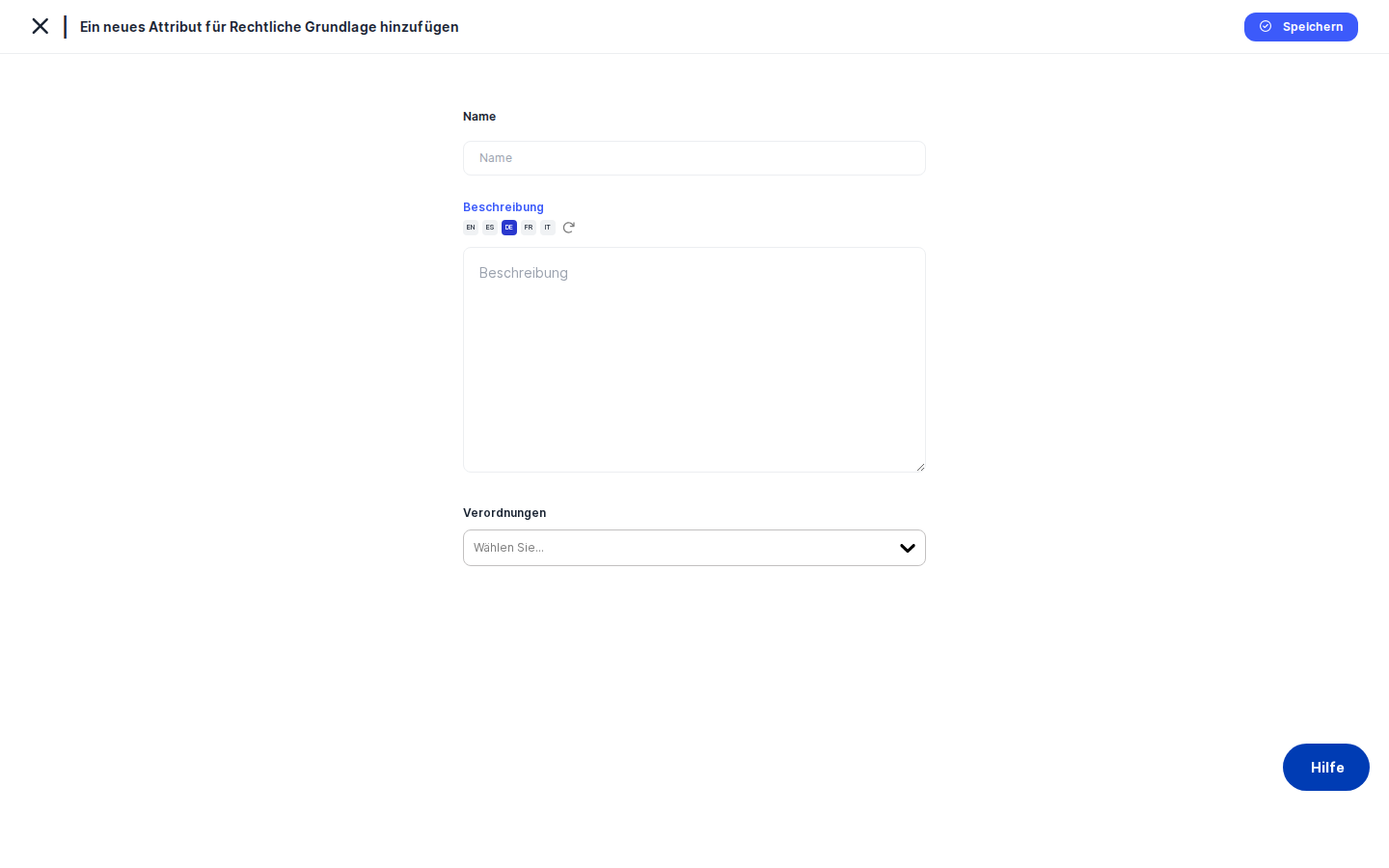
What you see
The page header reads "Add new Legal Basis" and sits above a compact white form card — deliberately narrow so your attention stays on the three fields that matter. There are no tabs, no side menus, and no collapsible sections: just Name, Description, and Regulations, stacked from top to bottom. A Save button sits directly below the last field.
At the very top left, a back-navigation arrow sits next to the page title. This arrow is context-aware: depending on how you arrived at this screen, clicking it will take you to a different place — more on that in the tips section below.
Working with this screen
Setting up your legal basis catalogue for the first time
If your organisation is new to DPMS or is starting a fresh compliance programme, you will come here before anything else. The goal is to create a named entry for each lawful ground your organisation relies on.
Start by clicking into the Name field — the cursor lands there automatically when the page loads. Type a name that will be immediately recognisable to anyone on your team. A name like Consent (Art. 6(1)(a) GDPR) is far more useful in a dropdown than a bare article reference, because every colleague who later fills in a ROPA entry will see exactly what it means without needing to look it up. Agree on a naming convention with your team before you begin populating the catalogue, because this name is the exact text that will appear across the whole platform.
Move to the Description field. Although it is optional, a well-written description pays dividends: it tells your team when to use this legal basis and what conditions must be met. For example: "Applied when the data subject has given freely-given, specific, informed, and unambiguous consent to the processing of their personal data." If your organisation operates in multiple languages, you can use the AI translation button within the Description field to generate translations into the other languages your DPMS instance is configured for. This sends the text to your organisation's connected AI translation service and populates the translated versions automatically.
Finally, open the Regulations dropdown and select the regulatory frameworks this legal basis falls under — for example, GDPR, LGPD, or CCPA. You can select more than one. This tagging is what enables jurisdiction-based filtering in DPMS reports: if a compliance manager later asks "show me all processing activities covered under GDPR," DPMS will use the regulations you set here to answer that question. If the dropdown shows only No Regulation, your IT administrator has not yet configured any applicable laws — see the tips section for guidance.
When you are happy with your entries, click Save. DPMS creates the record and transitions the form to edit mode for the new legal basis, so you can immediately review what was saved or add further details.
Creating a legal basis while working through an assessment
Sometimes you only discover a gap in your catalogue while filling in a data-mapping step inside an Assessment Review Portal. For example, you are categorising a processing activity and none of the available legal bases match the situation. Rather than abandoning your work, navigate to the legal basis creation form from within the assessment flow.
DPMS remembers that you came from an assessment. Type the Name — something descriptive enough to be useful immediately — and optionally add a Description. You can leave the Regulations field blank for now and add it later by editing the record. Click Save.
Because DPMS captured your assessment URL before you navigated here, it will route you back to the exact assessment page you were working on, not to the generic ROPA index. The new legal basis is available in your assessment's dropdown immediately, with no need to refresh or reload.
Switching to the edit view to update an existing legal basis
The same form used to create a legal basis is also used to edit one. When you open an existing legal basis for editing from its detail page, the Name, Description, and Regulations fields are pre-populated with the current values.
Make your changes — for instance, update the Description to reflect a revised internal policy — and click Save. DPMS sends an update to the server and confirms the change with a success notification. The form remains in edit mode so you can verify what was saved or continue working on related details.
Heads up: If two people have the same legal basis open for editing at the same time and one person saves first, the second person's save will be rejected with an error. This is a built-in safeguard to prevent accidental data loss. Simply refresh the page to load the latest version and re-apply your changes.
Managing legal bases as configuration tags
Compliance settings administrators who manage the platform's controlled vocabularies can also reach this form from Compliance Settings → Tags → Legal Basis. The form works identically, but the back button points back to the Tags management view rather than to the ROPA index. Create the legal basis as normal, click Save, and you are returned to the Tags screen where the new entry appears in the list for further configuration.
Field reference
- Name — The display name for this legal basis. This is the text that appears in every dropdown, ROPA entry, and data-mapping form across DPMS, so choose it carefully and follow your organisation's naming convention. This field is required: the form cannot be saved without it. The cursor lands here automatically when the page loads.
- Description — A free-text explanation of when and how this legal basis applies. Optional, but strongly recommended for any legal basis that might be ambiguous to team members who did not draft it. The Description field includes an AI translation button: clicking it submits your text to the platform's translation service and fills in the description in all other active languages. This feature requires that your organisation has AI features enabled and a translation provider configured.
- Regulations — A multi-select dropdown listing the regulatory frameworks this legal basis applies under (for example, GDPR, CCPA, LGPD). Selecting the right regulations here is what enables jurisdiction-based filtering in DPMS reports. This field is optional: you can save a legal basis without selecting any regulation. If no applicable laws have been configured for your organisation, the dropdown shows only
No Regulation— this is a safe fallback, not an error, but you should coordinate with your IT administrator to add the relevant frameworks before building your catalogue.
How this connects to the rest of DPMS
The legal basis catalogue is one of the very first things you should configure when setting up DPMS, because so much else depends on it. Here is how this screen fits into the broader platform:
ROPA entries draw directly from this catalogue. Every Record of Processing Activity has a legal basis field whose options come from exactly the records you create here. Without at least one legal basis in the system, your team cannot properly document any processing activity.
Assessment data-mapping steps also reference the legal basis catalogue. If the catalogue is empty, assessors working through data-mapping sections will find that field blank and will not be able to complete their work.
Compliance reports use the Regulations tag you set on each legal basis to enable jurisdiction filtering. If you want to be able to produce a report showing only GDPR-covered processing activities, you must tag each relevant legal basis with GDPR when you create it.
What to do after saving: Once you have created the record, DPMS transitions you to the edit view for that legal basis. From there you can review all saved values, add linked documents, or return to the ROPA index to start creating processing activity records that reference your new legal basis.
Tips & common pitfalls
Tip: Agree on naming conventions before you start. The name you enter here is the exact text displayed in every dropdown across the platform. Inconsistent names ("Consent," "GDPR Consent," "Art. 6(1)(a)") create confusion when colleagues fill in ROPA entries. Decide on a format — such as [Ground] (Art. X GDPR) — and stick to it from the first entry.Heads up: If the Regulations dropdown only shows "No Regulation," your applicable laws have not been configured yet. This is not an error — DPMS provides this fallback so you are never blocked. However, you should ask your IT administrator to add the relevant regulatory frameworks (GDPR, CCPA, etc.) in the applicable laws settings before you build your catalogue. Once they do, those options will appear automatically in this dropdown for all future and edited legal bases.
- Saving does not always redirect you to the list. By default, after you click
Save, you stay on the edit view for the record you just created. This is intentional — it gives you the chance to review what was saved and make any immediate corrections without navigating away. - The back button destination changes depending on how you arrived. If you came from the Legal Basis index, it returns to the ROPA index. If you came from an assessment, it returns to that assessment. If you came from Compliance Settings Tags, it returns there. This is a feature, not a bug, but it can be surprising if you expect uniform back-button behaviour.
- The form preserves your typing if you accidentally navigate away. DPMS uses a persistent form mechanism that holds your unsaved input in the browser temporarily. If you click away and return, your text will still be there. This does not mean it has been saved to the server — you must click
Saveto persist it. - If you see a concurrency error when saving, refresh and try again. The platform uses a hidden token to detect when two people edit the same record simultaneously. If someone else saved a change between when you opened the form and when you clicked
Save, the server will reject your submission to protect their work. Refresh the page to load the latest version and re-apply your edits.