
Using the MCP AI agent
The MCP AI agent is the bridge between the chat assistant in the Priverion platform and your real DPMS data. When you ask the assistant to draft a ROPA, evaluate vendor risk, or implement a control, the agent uses MCP tools, resources, and skills exposed by the platform to do the work in your tenant. This article explains how the agent operates, what it can and cannot do, and how to enable it.
Getting there
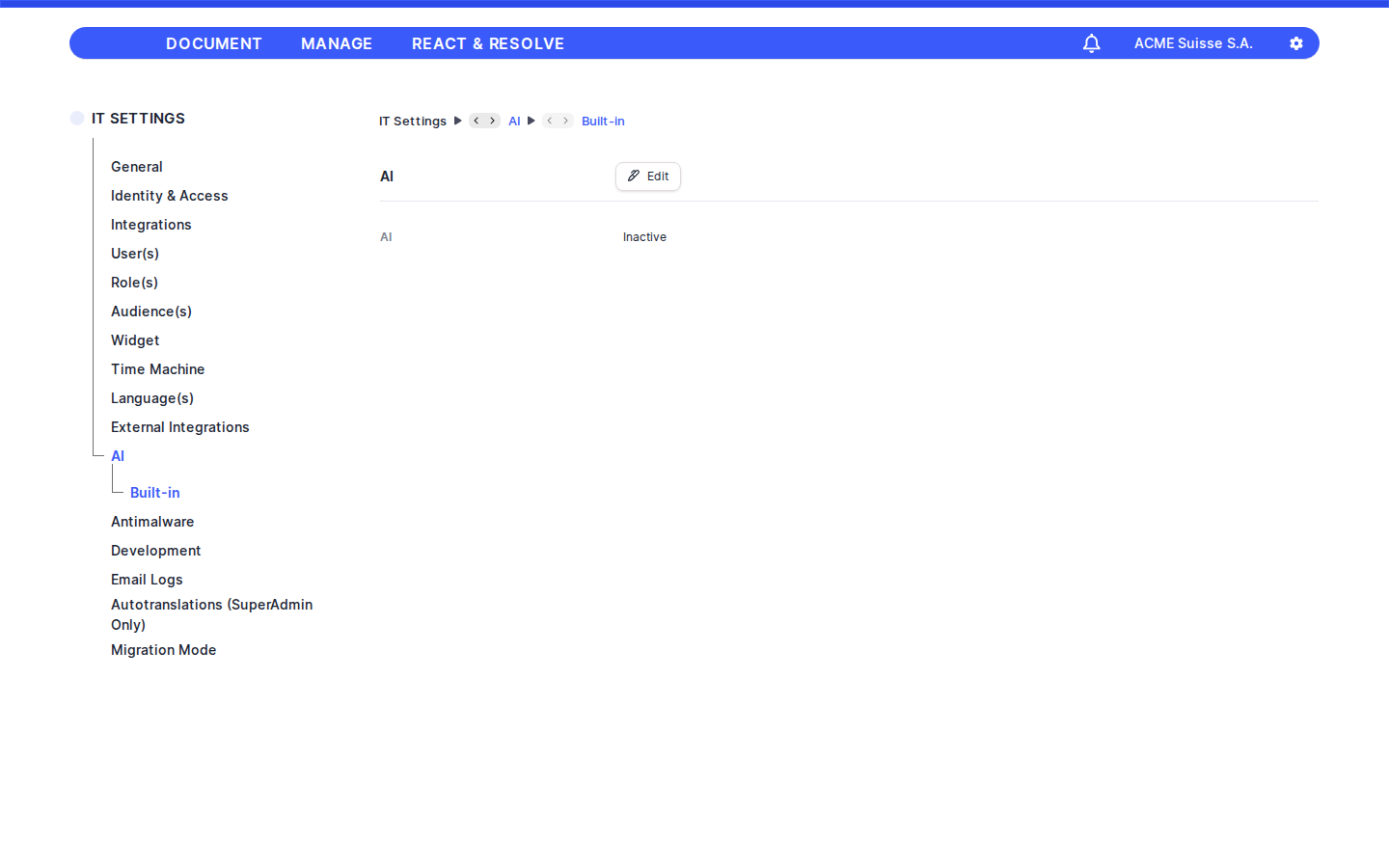
Go to IT Settings → AI (/it/settings/ai) to activate the agent and choose the industry context it should use.
What the agent is
The MCP agent is an AI assistant powered by a large language model (Anthropic, OpenAI, Google or AWS Bedrock, depending on what your tenant is configured to use). It does not see your database directly. Instead, it talks to a dedicated MCP server that ships with the platform and that exposes a controlled catalog of:
- Resources — read-only data lookups (for example:
ropa://,vendor://,asset://,toms://,risk_models://,statuses://). - Tools — actions that create, update or link DPMS elements (for example:
create_or_update_ropa,create_or_update_vendor,asset_link_risk_scenario,tom_link_relevant_risk_scenario,activate_deactivate_standards). - Skills — higher-level playbooks bundling several tools and resources together for common use cases such as ROPA creation, vendor onboarding, or asset risk assessment.
Every call the agent makes is scoped to your company tenant and gated by the same permissions that apply when a user clicks through the UI. The agent cannot bypass authorization.
How a conversation works
- You open the chat assistant and send a prompt.
- The platform creates (or reuses) a conversation and queues a job for the agent.
- The agent connects to the MCP server using a short-lived token tied to your company.
- The agent calls
discoverto understand which skills and tools apply to your request, then runs the relevant resource lookups (for example, fetching existing ROPAs, vendors, or risk scenarios). - Before creating anything new, the agent searches for existing matching elements by name and translation to avoid duplicates.
- The agent calls one or more tools to make the changes you asked for. Each call goes through the same backend validation as a manual edit.
- Replies and tool results are stored in the conversation history so that follow-up questions keep the context.
Tip: The agent automatically summarizes very long conversations to stay within the model's context window. You can keep working in the same conversation without losing relevant decisions.
Typical things you can ask
The agent is designed around the same domain as the rest of the application. Some examples that map directly to skills and tools:
- Compliance frameworks — "Activate ISO 27001 and configure its risk model with five risk levels in EUR."
- ROPA — "Create a Record of Processing Activity for our customer loyalty program, link it to the customer database asset and to our marketing cloud vendor."
- Vendors — "Add MailFlow Services as a US-based processor and link it to GDPR."
- Assets — "Add a new asset 'Cloud File Storage' in Germany, owner IT Security Team, and link it to the 'Data Breach' scenario from NIST."
- TOMs — "Apply the 'Data Encryption at Rest' measure to all assets exposed to the 'Data Exposure' scenario."
- Risk evaluation — "Re-evaluate the EU Customer Database under ISO 27001 after the new encryption controls."
- Tasks & remediation — "Create a high-priority task for IT to enable MFA on the customer database, due in 30 days."
- Data subject requests, incidents, DPIAs, assessments — drafting, linking, and status updates.
For every action, the agent will tell you which existing element it reused and which new element it created, including the IDs.
Permissions and safety
- Tenant scoping: every MCP request carries your
companyIdentifier. The agent can only see and modify data inside your company. - Permission checks: tools enforce the same permission rules as the UI. If you cannot edit vendors yourself, the agent cannot edit them on your behalf.
- No silent destructive actions: the agent prefers updating or linking existing elements over creating new ones, and it will surface what it changed.
- Auditing: every tool call is logged against the conversation, including which user the agent acted for.
Activating the agent
Use the IT Settings → AI screen documented separately to:
- Switch the
AItoggle to Active. - Pick an
Industryso the agent's suggestions, templates, and skills are tailored to your sector. - Save.
Once active, the chat assistant in the application can use the MCP agent. Users still need their normal DPMS permissions to actually create or modify records.
Tip: Activating AI does not change anything in your data on its own. The agent only acts when a user explicitly asks it to in chat — and only within that user's permissions.
When to use the agent vs. the UI
Use the agent when you want to:
- Bulk-create or link related elements (for example, a new ROPA together with its assets, vendors, and TOMs).
- Apply a standard or skill end-to-end (for example, onboarding a vendor with the right regulations and risk scenarios).
- Get a quick summary or status across multiple modules.
Use the UI when you need pixel-level control of a specific field, attach files, or follow a workflow that requires manual review.
Limitations
- The agent only uses the tools and resources exposed by your MCP server version. New features become available as your platform is updated.
- The agent cannot see attachments or file contents that are not exposed as MCP resources.
- AI responses can still contain mistakes — always review the elements the agent created or updated, especially before approving or sending a ROPA, DPIA, or assessment to external recipients.