
Browse workflows
Browse Workflows
The Browse Workflows screen is the central hub for everything related to automation in Priverion. It is where your organisation's compliance automations live — workflows that trigger status changes, send overdue reminders, escalate DSR deadlines, kick off review processes, and more. DPOs, IT administrators, compliance officers, and risk managers come here to see every automation at a glance, navigate to the visual editor to build or adjust a workflow, check what is currently running in the queue, and manage the shared building blocks — constants and email templates — that those workflows rely on.
Without at least one active workflow, none of the automated compliance actions in Priverion happen on their own. This screen is therefore one of the most important places in the system to keep an eye on.
How to open it
Click Workflow in the main application sidebar. The module opens directly to the Browse Workflows list. If you cannot see Workflow in the sidebar at all, your account does not currently have access to the Workflow module — contact your administrator.
Users who can view workflows but cannot create or edit them will see the list but will not see the Create button.
What you see
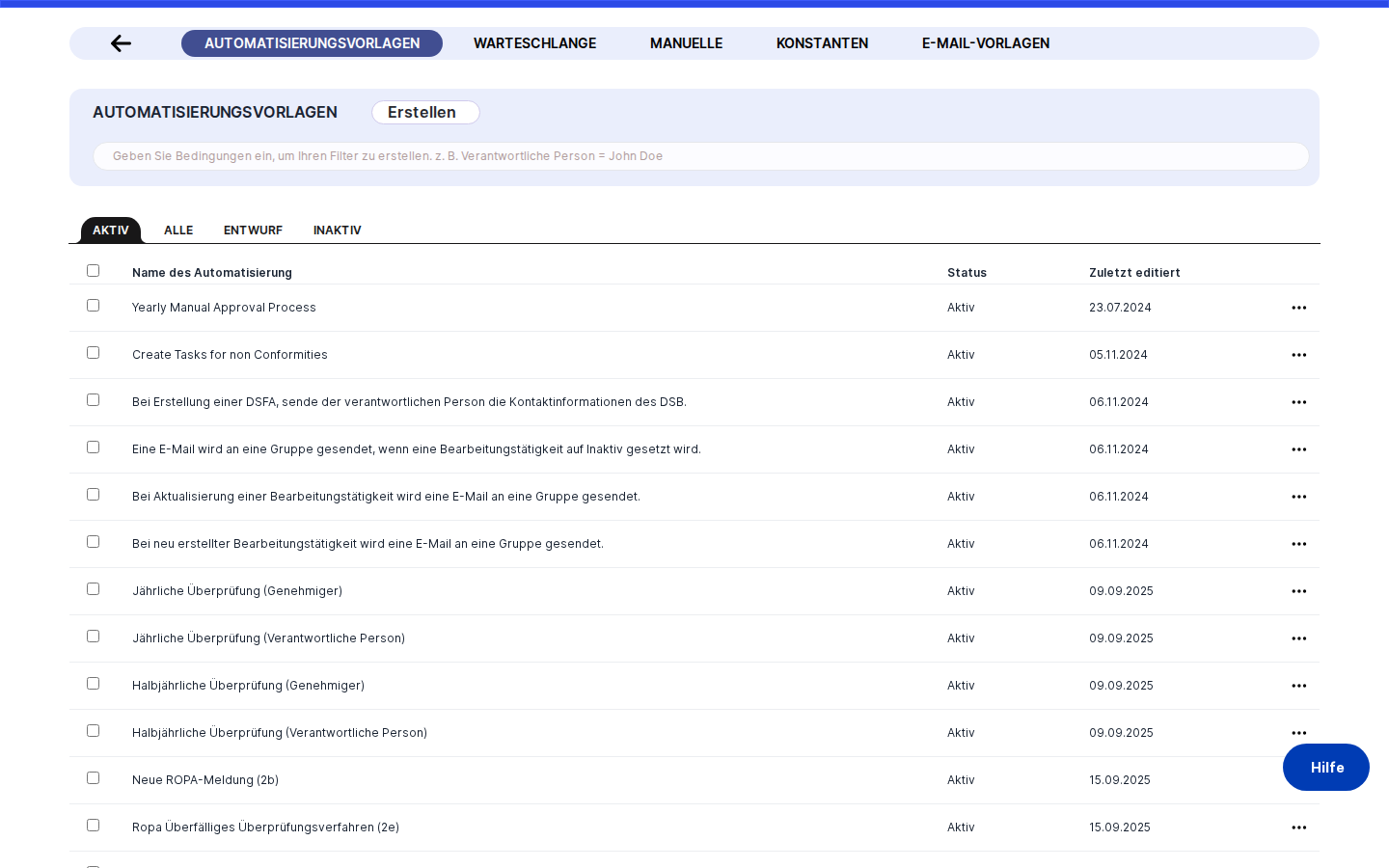
The screen has two distinct areas. Across the very top sits a narrow navigation band containing a row of small pill-shaped buttons — one for each major section of the Workflow module: the main workflow list, Constants, Email Templates, and Queue. The pill for whichever section you are currently viewing appears highlighted. Only pills for sections you have access to are shown.
Below the navigation band is the main content area. It follows the same table-and-header layout you will recognise from Records of Processing Activities, Assets, and Vendors elsewhere in Priverion. A Create button sits in the top-right corner. Below that, a search and filter bar spans the top of a scrollable data table. Each row in the table represents one item — a workflow, a constant, an email template, or a queue entry depending on which section you have navigated to. Rows are clickable, and hovering over a row reveals action buttons on the right side.
There are no tabs or sidebars within the page itself. Everything is kept intentionally flat: one table, one search bar, and the top navigation band to move between sections.
Working with this screen
Browsing and finding a specific workflow
When you open Workflow from the sidebar, you land on the main workflow list. If your organisation has many workflows, the list supports infinite scroll — keep scrolling and more records load automatically.
To find a specific workflow quickly, type its name (or part of it) into the search bar at the top of the table. The list filters in real time. Once you spot the workflow you are looking for, click anywhere on its row to open it in the Workflow Visual Editor, where you can inspect its node graph, check its status (draft, active, or inactive), and make any changes needed.
Tip: If a workflow is not triggering when you expect it to, open it from this list and confirm in the editor that its status is set to Active. A workflow in Draft or Inactive state will not execute, no matter how well-built its logic is.
Creating a new workflow or a new constant
To start building a new automation, make sure you are on the section you need — the main workflow list for a new workflow, or Constants for a new constant.
Click the Create button in the top-right corner of the content area. A small dropdown menu appears. Click the item in the menu (for example, Create Constants when you are on the Constants section). You are taken directly to the creation form for that object type. Fill in the details and save — you will be returned to the list, where your new item appears immediately.
If you do not see the Create button, your account does not have the write permission for the Workflow module. Contact your administrator.
Managing reusable constants
Constants are named, typed values defined once and referenced by many workflows. Think of them as shared variables: an overdue threshold (number of days), an API token, a multilanguage label, or a set of ROPA records. Changing the value of a constant updates it for every workflow that uses it simultaneously — you do not need to open each workflow individually.
To view and manage constants, click the Constants pill in the top navigation band. The table shows every constant your organisation has defined, along with its Type, an optional Description, and — most usefully — a Workflows column listing every workflow that currently references it.
To see which workflows would be affected by a change, scan the Workflows column before editing anything. Each workflow name in that column is a clickable link with a small external-link icon; clicking it opens the Workflow Visual Editor for that specific workflow in a new browser tab so you can review it without leaving the constants list.
To edit a constant, click the pencil-shaped edit button that appears on the right side of its row when you hover over it. To remove a constant that is no longer needed, click the delete button on the row. If the constant is still in use by one or more workflows, Priverion shows a warning and asks you to confirm before proceeding.
Heads up: Changing a constant's Type (for example, from Text to Multilanguage) will clear its stored value. You will need to re-enter the value — in every active language — after the type change is saved. Plan type changes carefully, especially for constants that are actively referenced by running workflows.
Monitoring running workflow executions (Queue)
Click the Queue pill in the top navigation band to see all current and historical workflow execution instances. Each row represents one time a workflow was triggered and ran (or is still running).
For any execution that is currently in progress — shown with an open status — a Stop Workflow button appears on the right side of the row. Click it to immediately halt that execution. The button shows a spinner while the stop request is being sent; once confirmed, the row's status updates to reflect that the run has ended.
The Stop button only appears on rows that are actively running. Once an execution has completed, failed, or already been stopped, the button is simply not shown — there is nothing to stop.
Tip: Use the Queue whenever you suspect a workflow has triggered unexpectedly or is sending more notifications than intended. Stopping a runaway execution from here is faster than deactivating the workflow entirely.
Navigating between module sections
The top navigation band — with its Constants, Email Templates, and Queue pills — is always visible across all pages within the Workflow module. Click any pill to switch sections instantly. You do not need to return to the sidebar.
Clicking the first pill (the workflow list itself) brings you back to the main Browse Workflows table from any sub-section.
Field reference
The following fields appear in the Constants table. Other sections (main workflow list, Queue) have their own columns not covered here.
- Constant Name — the display name of the constant in the current interface language. If the constant has no name in your language, the field may be empty.
- Type — the data type stored in the constant. Options include: Text, Number (Integer), Number (Float), Email, Multilanguage, Date, Date & Time, Secret, and ROPA. The type determines which kind of input is shown when you edit the constant.
- Description — an optional free-text description entered when the constant was created. Useful for documenting what the constant is for.
- Workflows — the list of workflow names that reference this constant. Each name is a link that opens the Workflow Visual Editor for that workflow in a new tab. An empty column means no workflow currently references this constant — but note that unsaved drafts in the editor are not reflected here.
How this connects to the rest of Priverion
The Browse Workflows screen is the entry point to the entire Workflow module. Everything automation-related in Priverion flows through it.
From this screen, you can reach:
- The Workflow Visual Editor (by clicking any workflow row or using the
Createflow) - The Create Constant form (via the
Createbutton on the Constants section) - Individual constant edit forms (via the edit trailing action on a constant row)
- The Workflow Queue (via the Queue navigation pill)
- The Email Templates list (via the Email Templates navigation pill)
What depends on what is configured here:
- Constants you define in the Constants section are available to workflow nodes inside the Workflow Editor. A node that references a constant that does not yet exist here will fail silently at runtime — create the constant first, then build the node.
- Email templates managed via the Email Templates section are used by notification nodes in the visual editor. If an email template is deleted from here, workflows that reference it will not be able to send notifications.
- The Queue reflects the actual execution history of every workflow in the main list. A workflow that does not appear in the main list has never been saved and therefore never appears in the Queue.
After reviewing this screen, your typical next steps are either to open the Workflow Visual Editor to build or modify an automation, or to navigate to Settings → General → Email Templates to configure the notification content that your workflows will send.
Tips & common pitfalls
Heads up: Editing a constant that is actively referenced by workflows will affect every one of those workflows the next time they run. Always check the Workflows column before changing a constant's value or type. If you see workflow names you do not recognise, click the external-link icon to open and review them before saving.
Tip: Constants of type Secret never show their stored value in the interface — once saved, the value is masked. If you lose the value of a Secret constant, you must overwrite it with a new one. There is no "reveal" option.
- A workflow not triggering? Open it from the list and confirm its status is Active in the editor. Draft and Inactive workflows do not execute.
- The Workflows column shows nothing but the constant is in use? Unsaved workflow drafts open in the editor but not yet saved to the system are not counted in the Workflows column. If a colleague has a workflow open in the editor that references your constant, it will not appear until they save it.
- The ROPA type constant requires selecting users before ROPAs appear. When creating or editing a constant of type ROPA, select the relevant responsible persons from the Users field first. The ROPA picker filters its results based on the users you choose — if you skip this step, the ROPA dropdown may appear empty.
- Filter state can carry over between sessions. If the table appears to show fewer records than expected, check whether the search bar has a leftover filter from a previous session. Clear any active filter text to restore the full list.
- Deleting a constant that is still in use triggers a confirmation warning. If you confirm the deletion, every workflow that references the constant will encounter a missing reference at its next run. Remove the reference from all workflows before deleting the constant itself.