
Vendor IT risk overview
Vendor IT Risk Overview
The Vendor IT Risk Overview is your central dashboard for understanding how well each of your organisation's vendors meets your information-security requirements. Data Protection Officers, Information Security Managers, IT administrators, and compliance officers use this screen to spot which suppliers fall below the maturity levels your organisation requires, and to trace those gaps back to the specific technical and organisational measures (TOMs) that are supposed to address them. It sits at the intersection of vendor management and information-security assessment: once a vendor has completed an assessment in the Information Security domain, DPMS aggregates the results here into a visual maturity grid so you can move from a high-level risk picture to the concrete documentation of remediation measures in a single uninterrupted flow.
How to open it
In the left-hand sidebar, navigate to Vendors, then click the IT Risk tab at the top of the Vendor area. The IT Risk tab is only visible to users who have the vendor-read permission. If you cannot see it, contact your DPMS administrator.
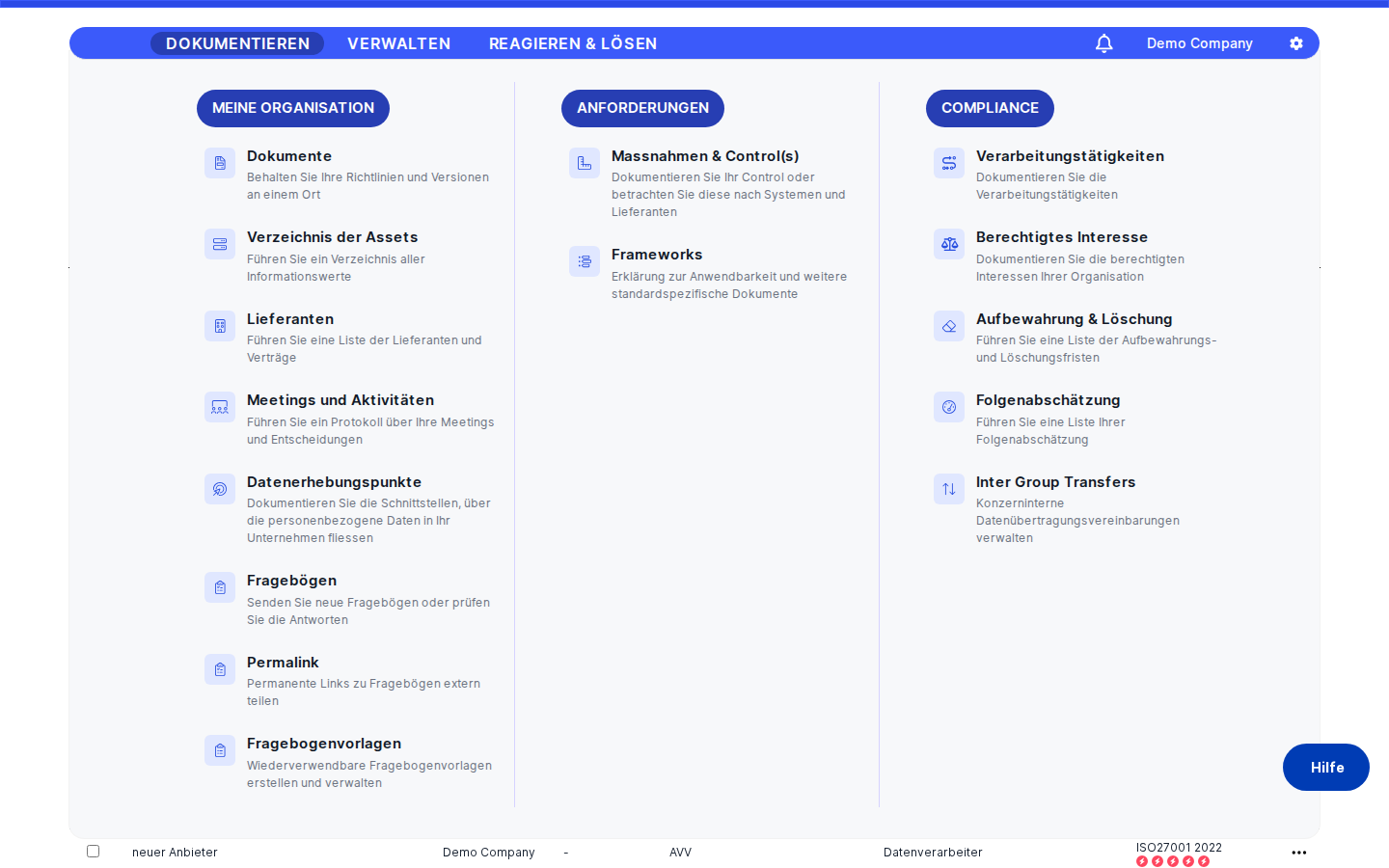
What you see
When you first land on the screen, you see a full-width list of all your vendors in a scrollable table. A search bar sits above the table on the left, and a Create button appears at the top right for adding new vendors. Each row represents one vendor; hovering over a row reveals a three-dot action menu on the right edge.
When you click into a specific vendor, the layout changes to a detail view. At the top is a back-navigation bar labelled IT Risk alongside a left-arrow icon. Beneath it, the vendor's name is displayed prominently. Two dropdown selectors appear below the name — one pre-set to ISO 27001 and one to a combined-maturity label — followed by the maturity grid that makes up the bulk of the page.
The maturity grid is organised in horizontal rows, each representing a security section (for example, "Access Control" or "Network Security"). A dark-blue pill on the left of each row labels the section, and a light-blue container to the right holds the question cards for that section. Each card is either green (the vendor meets the required maturity level) or red (the vendor does not).
Working with this screen
Finding and reviewing a specific vendor
Start at the index by typing the vendor's name into the search bar at the top of the table. The list filters in real time as you type. Once you see the vendor you want, click anywhere on the row to open the detail view.
The detail view loads with the vendor's name at the top. Below the two dropdown selectors, you will see the full maturity grid. Work through the section rows from top to bottom. Each dark-blue section label on the left tells you which security domain you are looking at. Within each section, the question cards give you an immediate colour-coded read: green means the vendor's current maturity score meets or exceeds your organisation's target; red means it does not.
Each card shows you:
- A progress bar that fills proportionally to how close the vendor is to the required level, with filled dots representing levels already achieved.
- A CMMI level label (such as "Initial" or "Managed") floating above the bar, showing the qualitative stage the vendor has reached.
- A target indicator on the right of the bar showing the required CMMI level name and the percentage of the way to completion.
- The question name or abbreviation as a clickable link at the bottom of the card.
If you need to get back to the full list, click the IT Risk back-navigation link at the top of the page.
Drilling down from a gap to its remediation measures
When you spot a red card — meaning the vendor has not reached the required maturity level for a particular security control — click the question name link at the bottom of that card. DPMS navigates to the Linked TOMs view for that specific question, showing you all the Technical and Organisational Measures that are documented as controls for this gap.
Review the list of TOMs. If the list is empty, it means no remediation measure has yet been documented for this control. You can click the Create button in the top right of the Linked TOMs view to draft a new TOM immediately, linking it to the question in context. Once saved, the new TOM will appear here for all future audits of this vendor.
If there are TOMs already listed, click any row to open that TOM's full detail record, where you can review its status, responsible person, and description.
When you are done reviewing, use the back button at the top of the Linked TOMs view to return to the vendor's IT Risk detail page.
Preparing for a vendor audit or review meeting
Before a quarterly vendor review, navigate to the vendor's detail view and work systematically through each section row in the maturity grid. For each section:
- Note the section name in the dark-blue label on the left.
- Check whether the cards within it are grouped further by tag groups — light-blue sub-containers with a label at the top. These represent finer-grained sub-categories within the section (for example, "Encryption at Rest" and "Encryption in Transit" within a "Cryptography" section).
- For each red card, note the CMMI level shown (such as "Initial") and the target level shown in the target indicator. A large gap between these two — for example, "Initial" against a target of "Defined" — signals a significant control weakness.
- Click the question name link on any red card to verify whether remediation TOMs already exist. If the Linked TOMs table is empty, create a new TOM before the meeting so you have something concrete to discuss.
- Green cards with 100% in the target indicator represent controls where the vendor is fully compliant. Note these as positives for the review.
By the end of this process, you have a complete picture of the vendor's compliance posture and the specific controls that need attention.
Adding a new vendor and understanding the empty state
If you need to add a vendor that does not yet exist in DPMS, click the Create button at the top right of the index page. A small menu expands; select the appropriate vendor type and complete the creation form. Once saved, the new vendor appears in the IT Risk index.
Click on the new vendor row to open its detail view. Because no Information Security assessment has been linked to this vendor yet, the maturity grid will appear empty below the dropdown selectors. This is expected behaviour. The grid will populate automatically once the vendor has completed an Information Security assessment with at least one closed question. Note this as a pending action in your workflow: the next step is to create and send an assessment to this vendor through the Assessments module.
Field reference
The detail view does not contain a data-entry form, but the maturity grid contains several non-obvious indicators worth understanding:
- Progress bar fill — The bar fills from left to right proportionally. Each filled dot represents a CMMI level already achieved. Unfilled dots represent levels still to reach. The bar is green when the target is met and red when it is not.
- CMMI level label — The floating speech-bubble label above the progress bar shows the qualitative CMMI stage for the vendor's current score (e.g. "Initial", "Managed", "Defined", "Quantitatively Managed", "Optimising"). This label only appears when the current level is greater than zero.
- Target indicator — Shows the required CMMI level name (from your organisation's maturity target settings) and the percentage of the way to completion, calculated as current level ÷ target level × 100. If a question template does not have its own target set, DPMS falls back to the organisation-wide target configured in IT Settings.
- Question name link — Displays the question's abbreviation if one exists, otherwise the full question name. Clicking this opens the Linked TOMs view. Note: this link only works for questions in sections that do not use tag grouping (see Tips & common pitfalls below).
- Framework selector (ISO 27001) — Currently displayed for information only; clicking it opens an empty dropdown. This is a placeholder for a future filtering feature.
- Combined maturity selector — Same as above: currently non-functional. Ignore for now.
How this connects to the rest of DPMS
The Vendor IT Risk Overview is a read-and-navigate layer — it displays data created elsewhere and provides drill-down pathways into other modules.
Before this screen is useful, your team needs to have completed three steps in other areas of DPMS: (1) configured maturity targets in IT Settings, (2) created vendors and linked Information Security assessments to them, and (3) ensured those assessments contain at least some closed questions in the Information Security domain.
From this screen, you can reach:
- The Linked TOMs view for any specific question card, where you can review and create remediation measures.
- The full TOM detail record by clicking a TOM row within the Linked TOMs view.
- The TOM creation form via the
Createbutton in the Linked TOMs view.
Other screens that feed into this one:
- The Assessments module, where Information Security assessments are created, sent to vendors, and closed. Until questions are marked as closed there, they will not appear in the maturity grid here.
- IT Settings, where the organisation-wide maturity target is configured. Changing that setting immediately affects how all cards calculate and colour their progress bars.
- The general Vendor profile, which manages vendor metadata and links assessments to vendors.
After identifying gaps on this screen, the typical next steps are: create or update TOMs in the Linked TOMs view, follow up on open assessments in the Assessments module, and update vendor records as remediation progresses.
Tips & common pitfalls
Heads up: If the maturity grid is completely empty after clicking a vendor, it almost certainly means the vendor's Information Security assessment has not yet had any questions marked as closed. Check the assessment's status in the Assessments module before assuming there is a data problem.
Heads up: The two dropdown selectors — the one showing "ISO 27001" and the combined-maturity selector — are currently placeholders. Clicking them opens an empty list and nothing changes. This is expected behaviour; the filtering functionality is not yet active.
- Target maturity can vary unexpectedly. Each question card ideally uses a target maturity value set directly on the assessment template. If that value is missing, the card silently falls back to the organisation-wide target in IT Settings. This means two vendors on the same template might appear to be assessed against different targets if the global setting changed between their assessments. Always verify that your templates have per-question targets set explicitly.
- Question name links may not work for all cards. For questions in sections that are subdivided into tag groups, the link at the bottom of each card defaults to a placeholder and clicking it does nothing. This is a current limitation: the navigation parameters needed to resolve the Linked TOMs route are only available for questions in untagged sections. If you need to find the TOMs for a tagged question, navigate to the TOM list directly and filter by the relevant assessment.
- The back button may not always return you to the IT Risk index. If you arrived at the vendor detail view via a deep link from another module (such as a task or notification), the back button will return you to that originating screen rather than the IT Risk list. To return to the IT Risk index reliably, use the Vendor > IT Risk path in the left-hand sidebar.
- Language display depends on template completeness. Section names, tag names, and question text are all shown in your current DPMS language. If an assessment template was not fully translated into that language, some labels may appear blank. Ensure templates are fully translated in all languages used by your team before distributing assessments to vendors.
- The infinite scroll loads more vendors automatically. There is no "next page" button. Simply scroll down in the index view and additional vendors will load automatically. If the list appears cut off, keep scrolling.